Dashboard Widgets
Updated January 11, 2025
Configuring widgets on the Dashboard provides a convenient way to access your batches. Keep in mind that Dashboard widgets are set up individually for each user, so you'll need to configure them for every user.
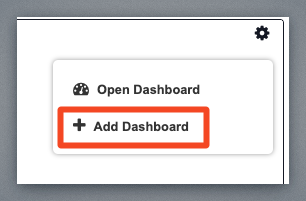
To start we need to configure a new dashboard. Click the gear icon located in the upper right corner of the dashboard and choose Add Dashboard.
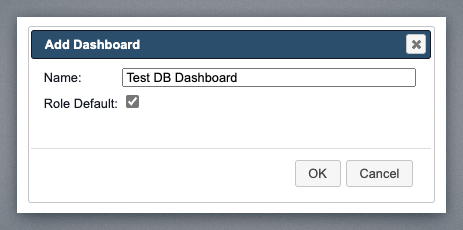
Give the dashboard a name. Be sure the Role Default option is checked. This will allow you to show the dashboard each time you log in.
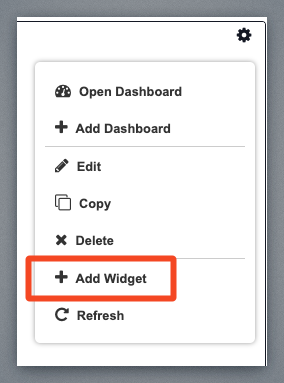
Once the dashboard is created, click the gear icon again, but this time choose Add Widget.
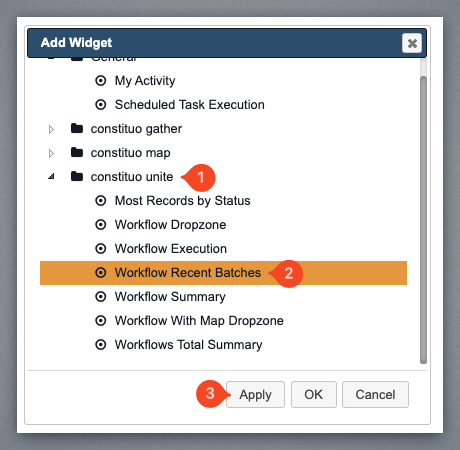
Scroll down to Constituo Unite and choose Workflow Recent Batches, and then click the Apply button to apply and continue adding additional widgets, or click OK to return to the dashboard.
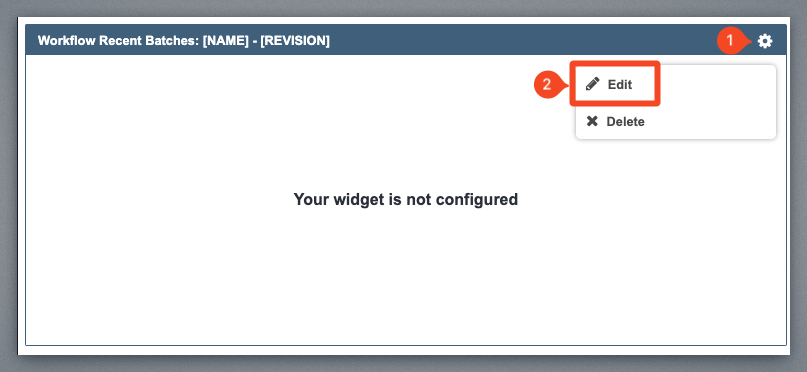
Now that the widget is created, we need to configure it. Click the gear icon in the upper right corner of the widget and select Edit.
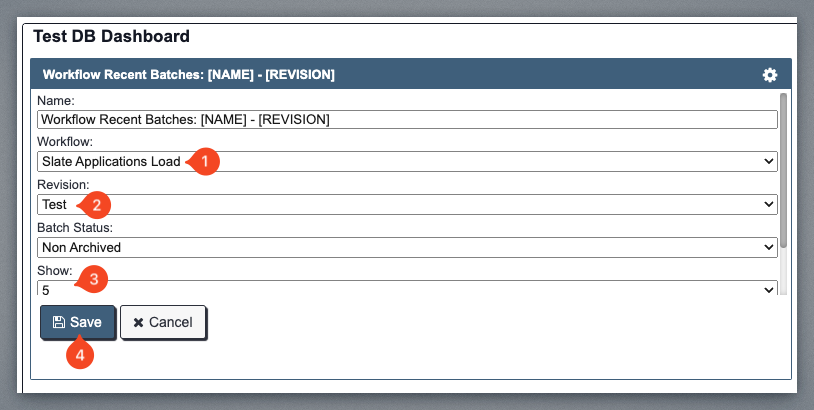
In this example, we can select the desired Workflow (Slate Applications Load), set the Revision (Test for this example), and specify the number of records to display. Click the SAVE button.
The dashboard widget will now show the workflow status.
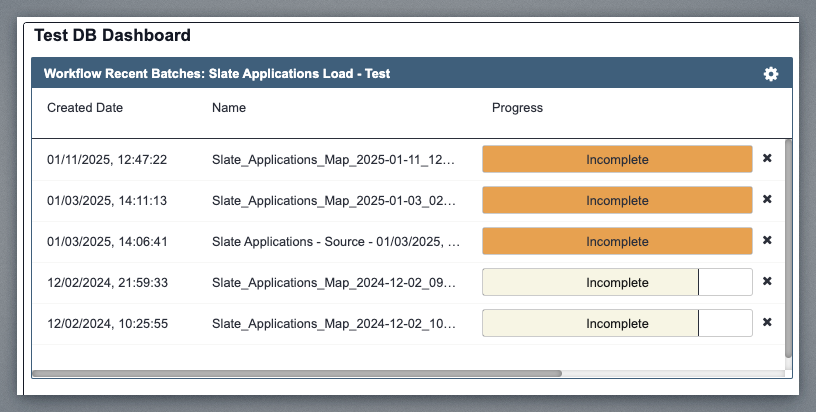
You can double-click any of the records in the batch and jump right into them.