Constituo Map
Updated January 11, 2025
This is Constituo’s data preparation tool, so any transformations to data from Slate that need to happen before inserting it into Banner will all happen on Constituo Map.
A Constituo Map defines how to transform data from one form into another. Data sources are used to define the form of both the input and output data. Transformations, translations, and straight mappings are then constructed to move data from one source to another.
Interface Overview
The Search Grid
The map search grid displays all the maps you have access to within your current role. The grid includes the data sources associated with each map as well as several metrics, including the number of files and records processed and first and last execution times.
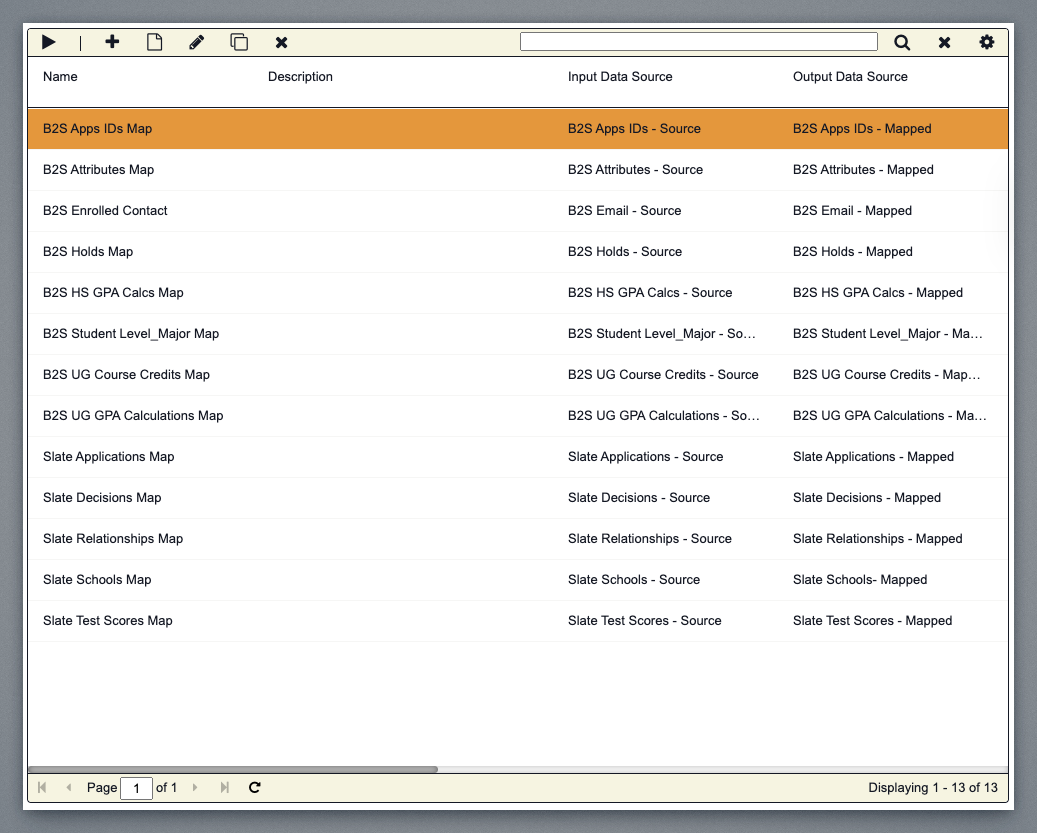
The buttons available to you at any given point will depend on the item(s) you have selected in the grid as well as your applicable permissions.

Click Run to execute the selected item.
Click Add to start the process of adding a new item to the grid.
Click View to view the selected item.
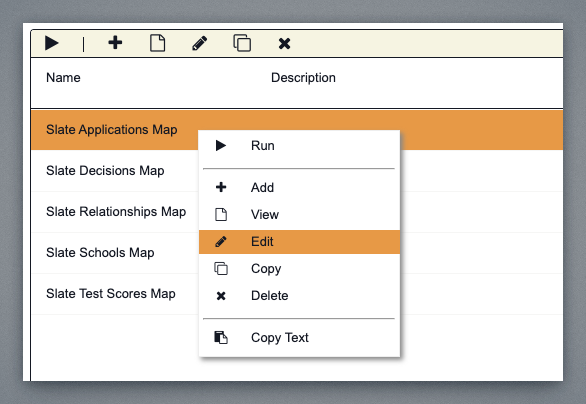
Click Edit to edit the selected item.
Click Copy to copy the selected item.
Click Delete to delete the selected item(s).
Click Copy Text (context menu only) to copy specific text directly to the clipboard.
The Search Toolbar and Tools
The search toolbar and tools are always available. The options displayed in the tools menu will depend on your permissions within the current role.

Click Search to search name and description for the search text provided.
Click Clear to clear the current search text.
Click Tools to display the tools menu.
Show/Hide Grid Data
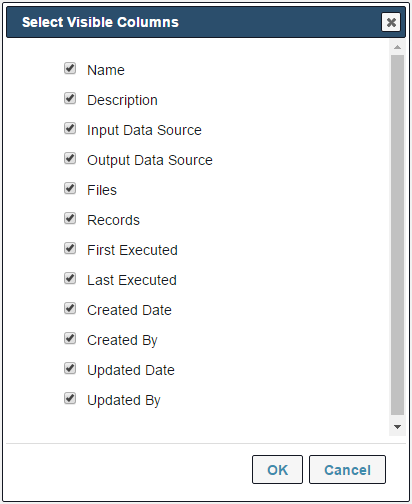
Click the Gear Tools button that appears when you place the mouse over any of the column labels to launch the Select Visible Columns dialog. Check the box for the columns you would like to show in the grid and uncheck the box for those you wish to hide.
The Paging Toolbar
The paging toolbar is always available and helps you navigate your elements if you have too many to display on a single page.

Click First to jump to the first page.
Click Previous to move to the previous page.
Click Next to move to the next page.
Click Last to jump to the last page.
Click Refresh to refresh the data in the grid.
Type a page number directly into the current page box to jump directly to that page.
Cayuga Map Setup
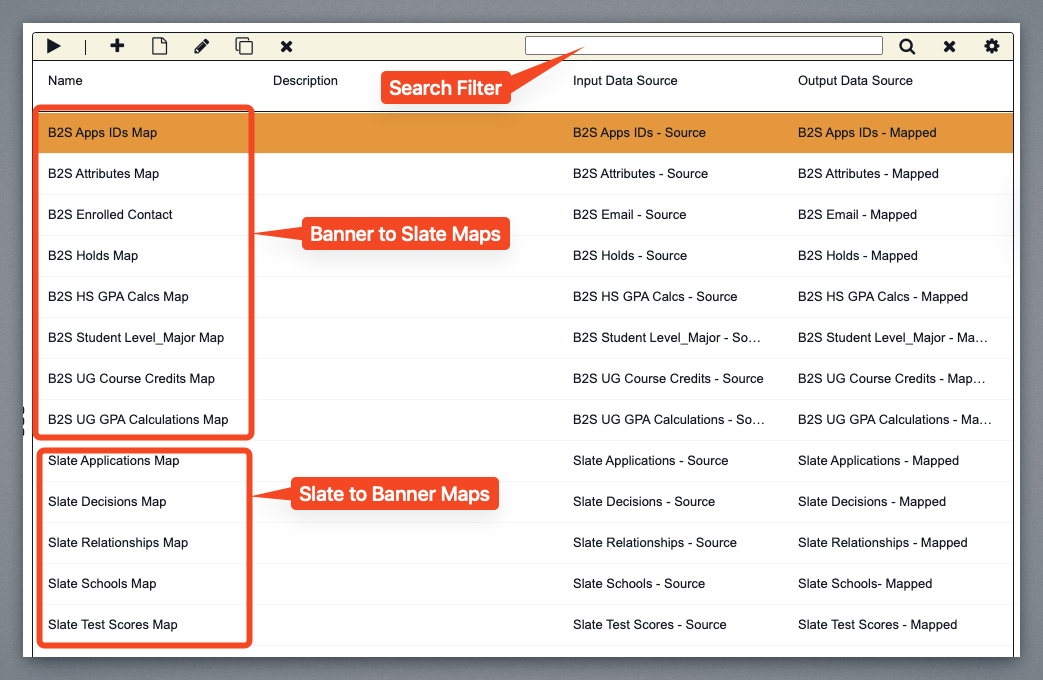
We have maps with B2S in the name of our Banner to Slate implementations. There are also maps starting with Slate, which signify our Slate to Banner implementations.
You can use the filter option to filter the list of Constituo maps. For example, if you type “Slate” in the filter field, the listing will only show the Slate to Banner maps that have been built.
Let’s take a look at an example. Right-click on the Slate Applications Map and click the Edit menu.
You are shown the Configuration tab which displays the name of the map, description and the Input and Output data sources.
Configuration Tab
Use the fields on the Configuration tab to provide the name and description of your map. This tab is also where you will specify the input and output data sources. There are several read-only fields for various map metrics including total files and records processed.
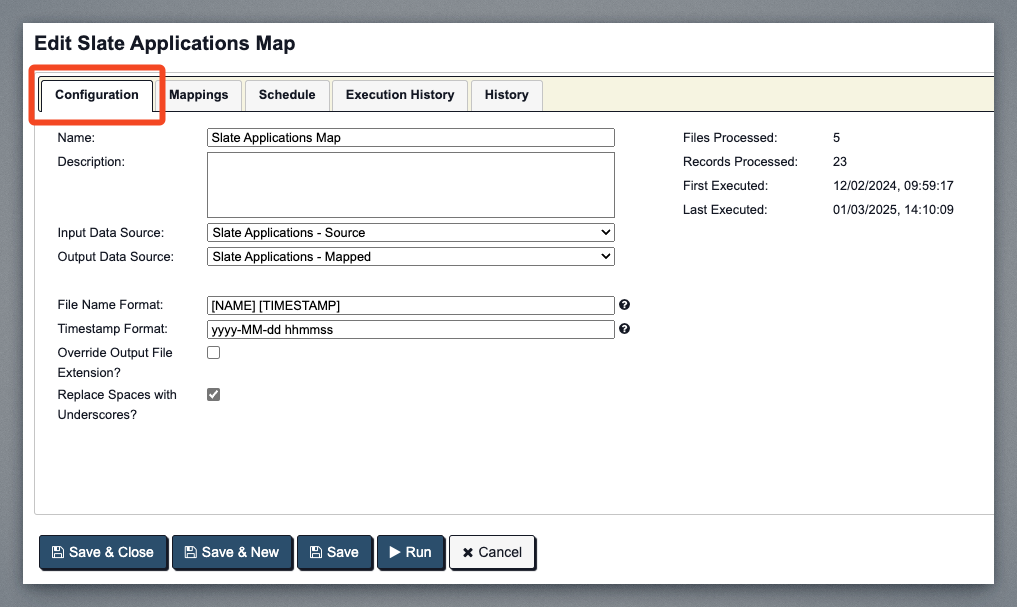
Provide the name of the map.
Provide the description of the map.
Select the input data source that you will be mapping from.
Select the output data source that you will be mapping to.
Provide the file name format. Click Help to see tips on formatting the file name.
Provide the timestamp format. Click Help to see tips on formatting the timestamp.
Indicate if you want to override the default file extension for the output file.
If you do want to override the default file extension, provide the new extension.
Indicate if all spaces in the file name should be replaced with underscores.
Mapping Tab
Click over to the Mappings tab. In this section, we can see the actual data points that are taking place. This is where you will map the fields from your input data source to the fields from your output data source. You can apply transformations to physically transform the data from one format to another. You can also use transformations to create new data based on values from your input data source.
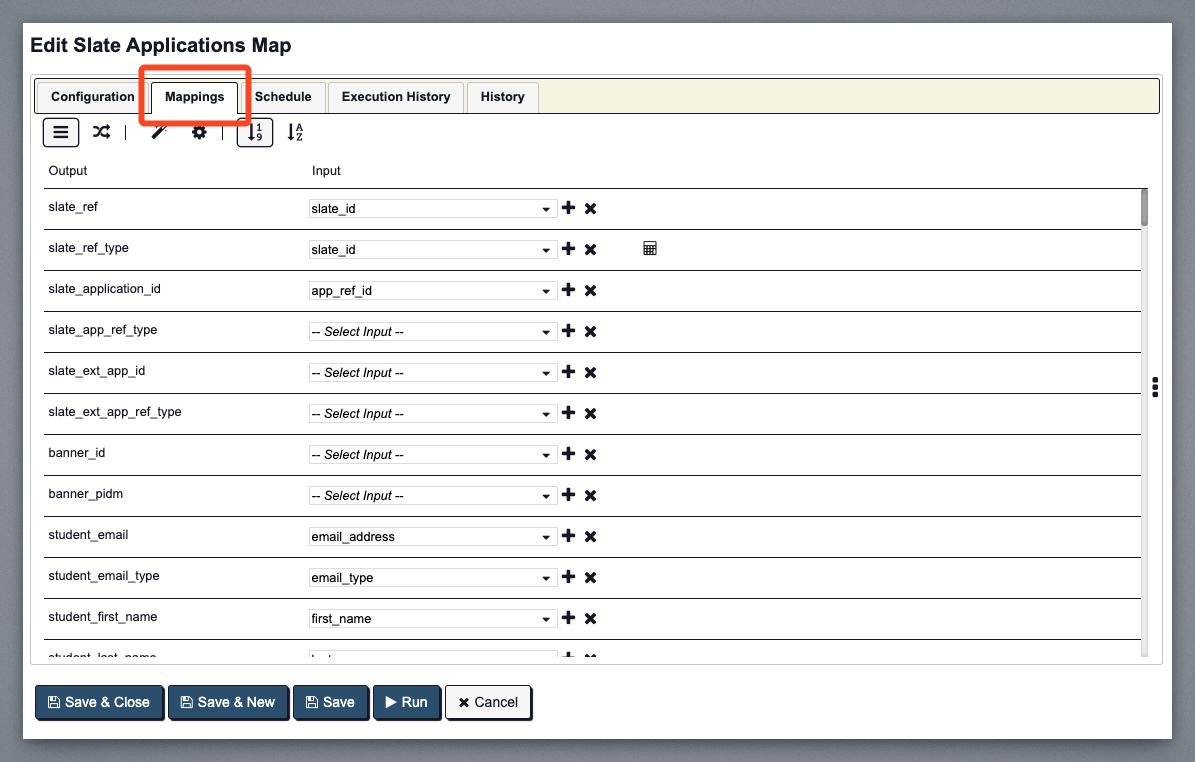
Data Transformations
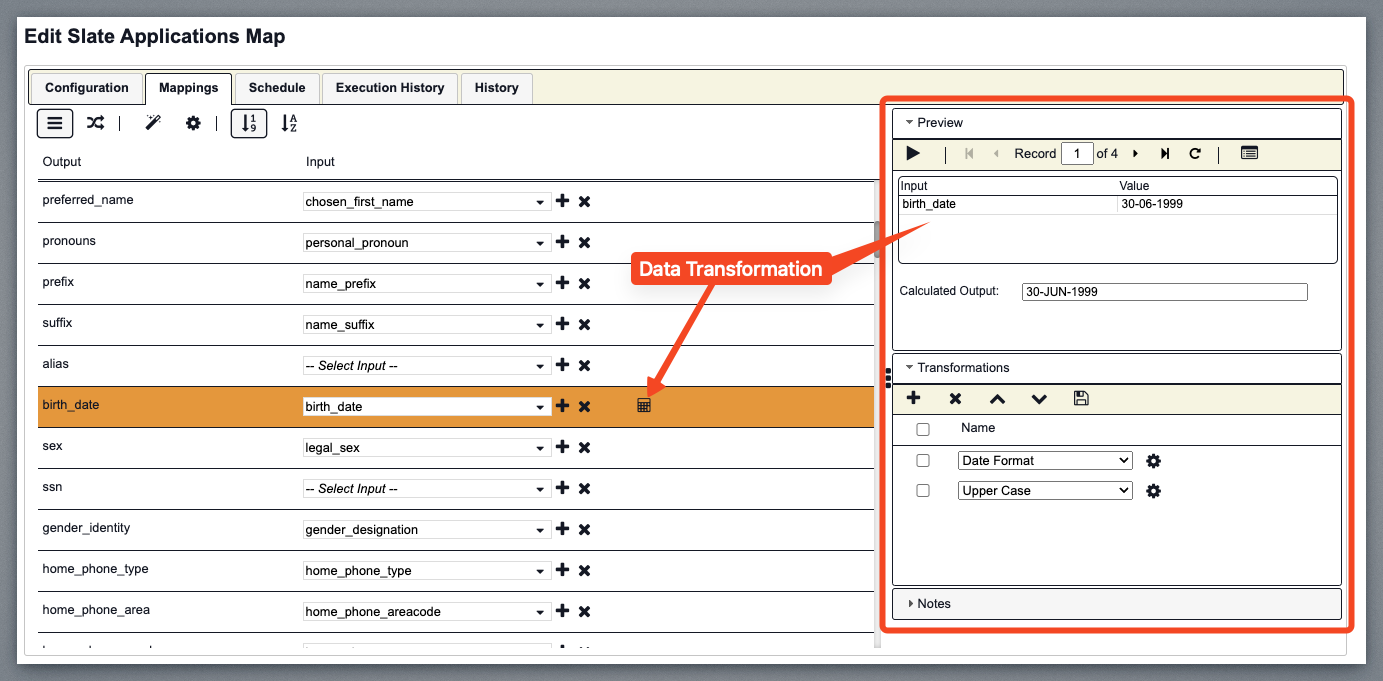
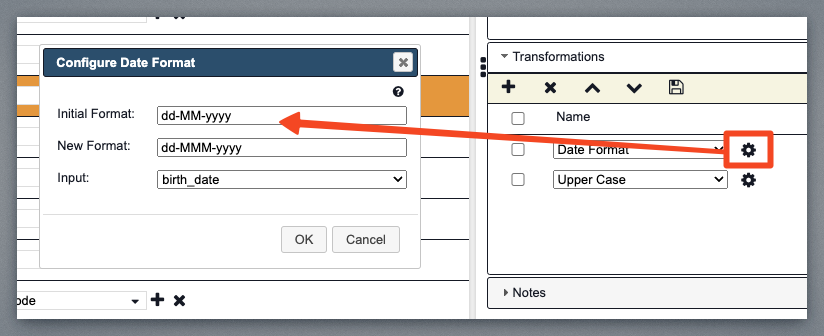
Any line item or field with a calculator icon next to it will have some Data Transformation. So, for example, if we go down to Birthday, you can see how we’re reformatting the Birthday based on the input from Slate versus what we need to feed into Banner.
Once we have transformed all the data, we are ready to upload the data to Constituo Unite.