Constituo Unite
Updated January 11, 2025
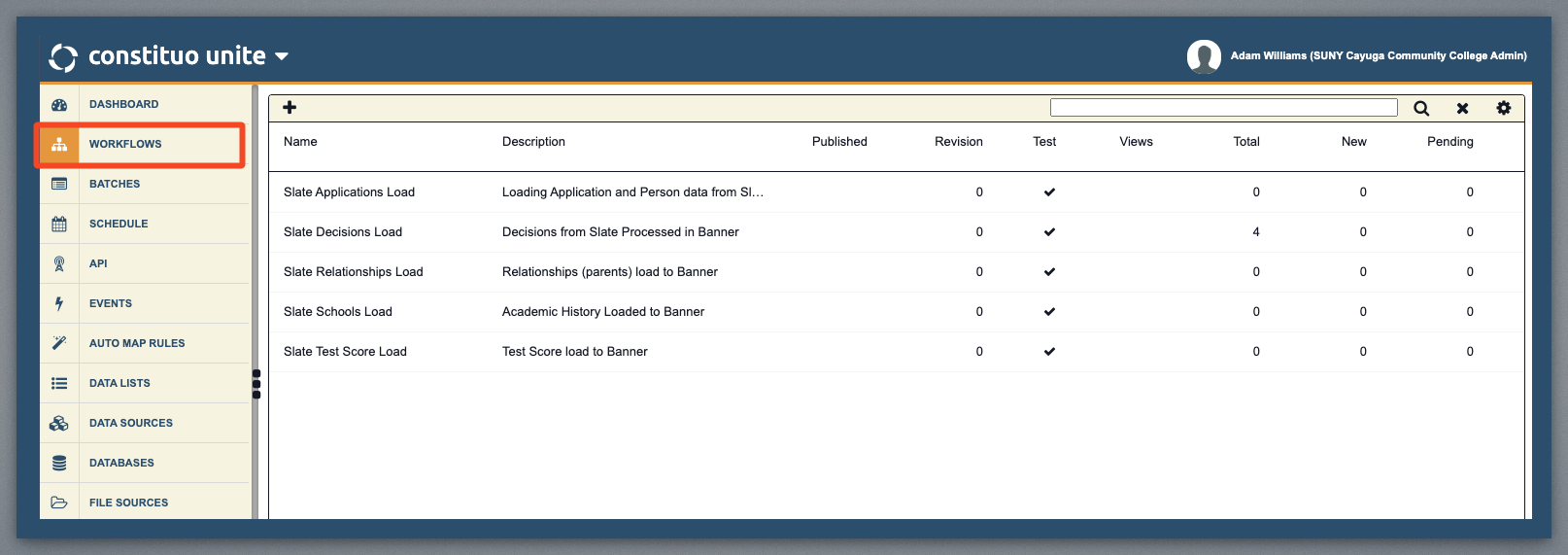
In Constituo Unite, you can see all the different workflows we have set up. A Constituo Workflow represents a progression of flow steps, logic steps, and router steps for processing information.
A workflow can be from the workflow search page by clicking run in the toolbar or from within the workflow itself by clicking the run button at the bottom of the page. A workflow can be run in debug mode if it is run while opened in edit mode.
Workflow Configuration
Use the configuration tab to provide a name, description and various other details for the workflow.
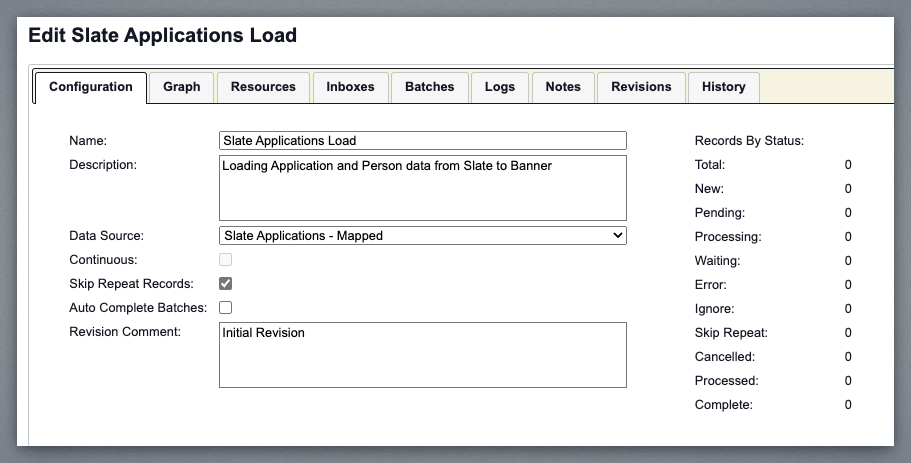
Select a data sources from the list of available data sources if applicable. The data source identifies the structure of the data that will drive the workflow process.
If the workflow is data sourceless, i.e. a published workflow, you can check the Continuous box to execute the workflow continuously (restarting at the first start step) without interruption.
If Skip Repeat Records is checked, records will be set to Skip Repeat status (with an applicable message) if the exact same record is in the previous batch (max created date prior to the current batch created date and a matching batch description) and has a Complete or Skip Repeat status. This setting is tied to the revision and must be promoted to production.
If Auto Complete Batches is checked, records will be set to Ignored status (with an applicable message) after 14 days. This setting is tied to the revision and must be promoted to production.
Add and/or modify the revision comment for the current revision.
View the number of records in the workflow revision by status.
Graph Tab
The Graph tab displays the start step, flow steps, logic steps, router steps, end steps, and all routes that define the workflow process. The page is divided into four sections. The left, right, and bottom sections can be expanded or contracted via the ellipses along the border of each section with the center section. The left and right sections are comprised of several accordions that vary depending on the type of step being displayed in the center section. The bottom section has the Problems, Console, and Search tabs.
The Flow Step
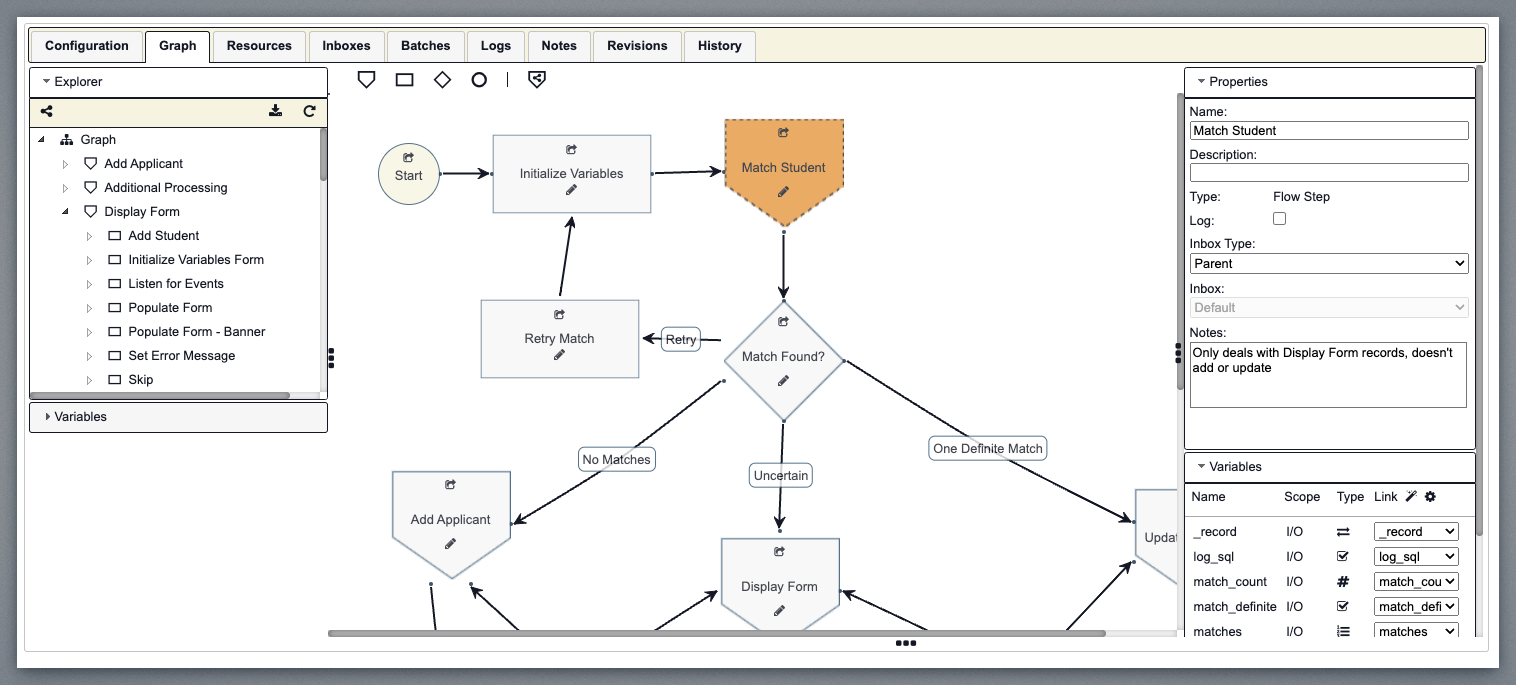
When the active step on the graph or debug tab is a flow step, the center of the tab displays the flow step canvas. The canvas is a graphical representation of the various steps that make up a flow step. Each flow step must have a start step and each route throughout the step must end with an end step. Steps may be added, edited, removed, connected or just relocated around the canvas. You can navigate the workflow by clicking the view or edit buttons on each step. Clicking on a flow step will display that flow step's canvas. There is no limit to the number of layers deep you can build a workflow. Note that the top most step of a workflow is itself a flow step.

The flow step toolbar makes it possible to add steps to the flow step being displayed. Once a step type (Flow Step, Logic Step, Router Step, End Step, or Shared Flow Step) is clicked, you can add a new step of that type by clicking on the flow step canvas. You can continue to click to add additional steps of that type. The toobar stays in that mode until another toolbar button is clicked. You can click the selected button to deselect it.
Resources Tab
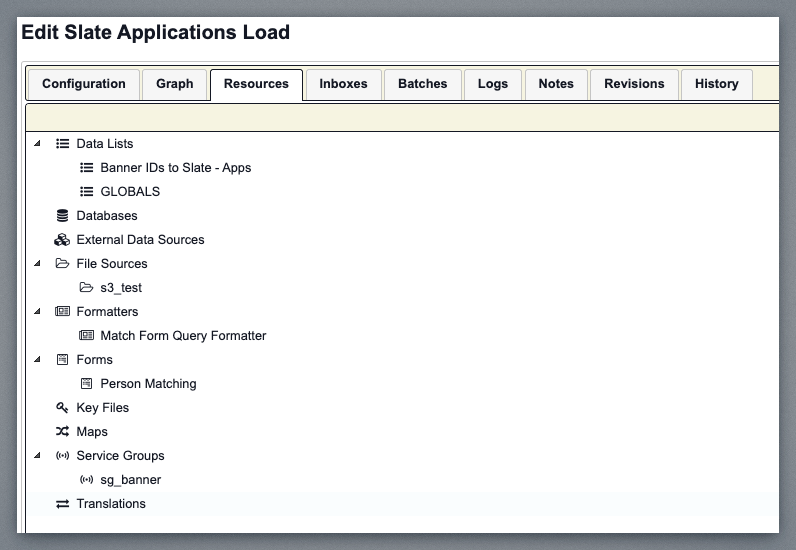
Use the Resources tab to manage various resources associated with the workflow. Workflow logic can only reference resources that have been added to the resource tab.
Batches Grid
The batches grid displays the batches within the workflow that meet the criteria set with the filters. The filters must be applied before any batches are displayed.
This will show all of the current batches that we have implemented or imported to test your data processing. On the left-hand side, you can filter the batches by clicking the apply button, which populates the grid with batches that meet the filter criteria. A filter annotation will appear above the grid for each filter that has been used. This keeps applied filters visible when the advanced filters are collapsed. Clicking the X on the annotation will remove the filter.
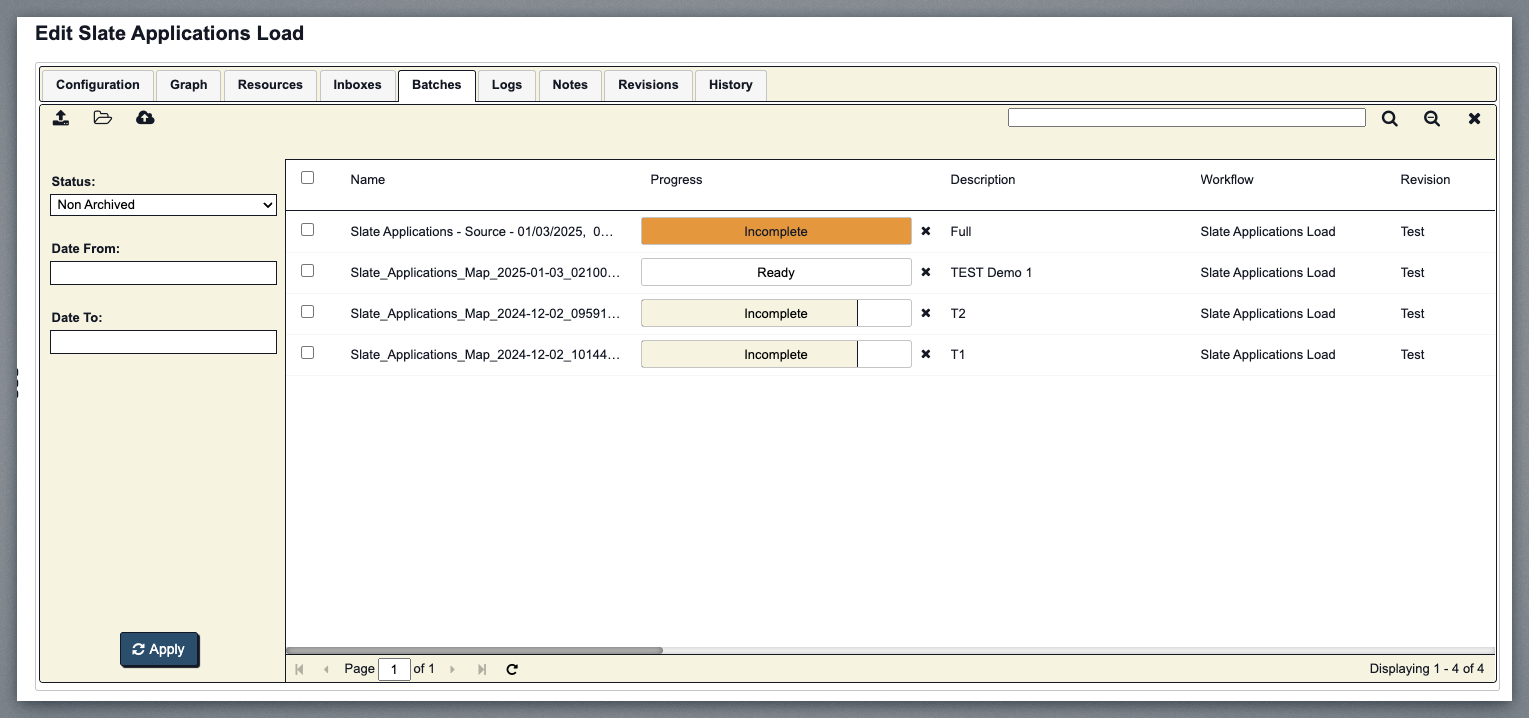
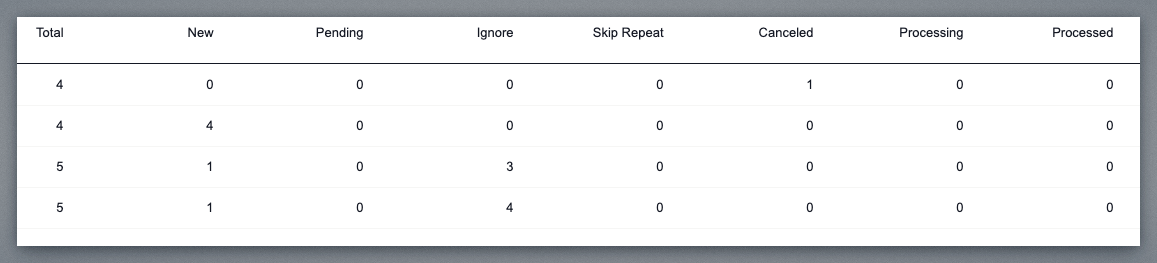
At any point, you can see the status of the entire batch. If you hover over the batches, you can see how many records are a part of each batch. You can see a high-level overview of the information concerning each batch, such as the name of the Workflow that it’s associated with.
Be sure to scroll over to see the status such as pending, ignore, skip, etc.
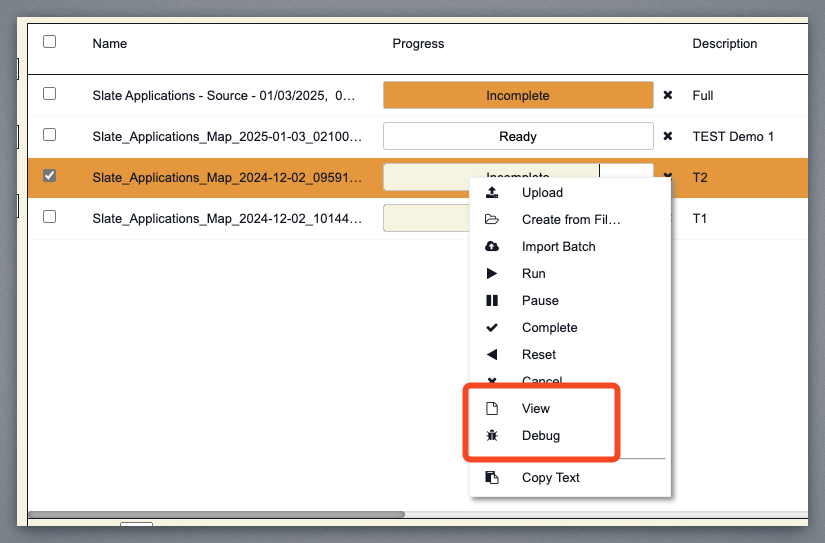
At any point, you can right-click to View or Debug these batches. In the example here, we will go into debug mode.
You will see the record view showing the individual records from the Slate queries. Here, we have our grid view, which is our high-level overview, sort of like the batch view, where we see a good number of fields to be able to get an idea of what’s being passed from Slate.
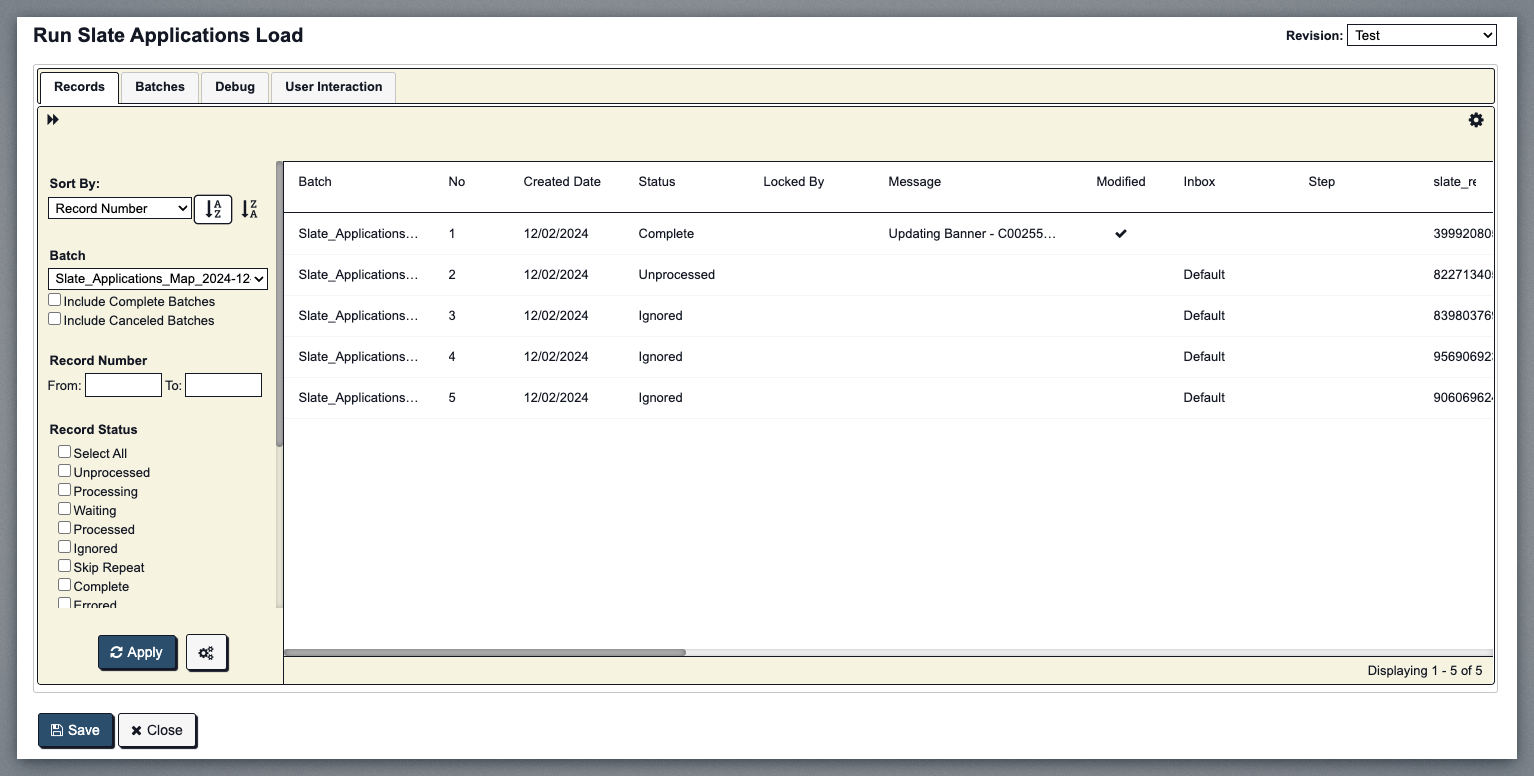
At any point, you can go into these individual records and View or Edit these records. If you go into Edit mode, you will have the ability to change the data if necessary. To get through the test phase, we may have to come in here a lot and edit the data to be sufficient for the particular table regardless of what you pass through Slate.
We will have to make sure that the data from our Slate queries is correct. By editing our test data here, we can manipulate it so that the data can work for the particular tables into which it’s inserted.
On the left-hand side of this, we have our filtering options. For example, if we wanted to search for one particular person throughout several batches, we can switch to All Non-Archive Batches and be able to search all of the batches that have been uploaded as a part of the application loader.
NOTE: The gear icon is for adding additional filter options not currently listed in the filter.
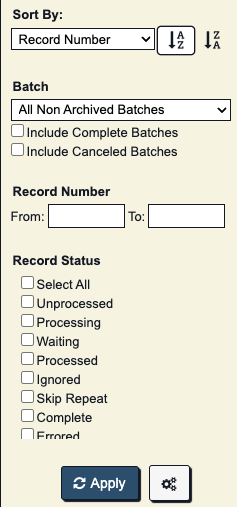
You can clear the filter option at any point by clicking that X icon and switching back to the current batch you were working with.
Debug Tab
Going to this debug window will show the code behind our data processing.
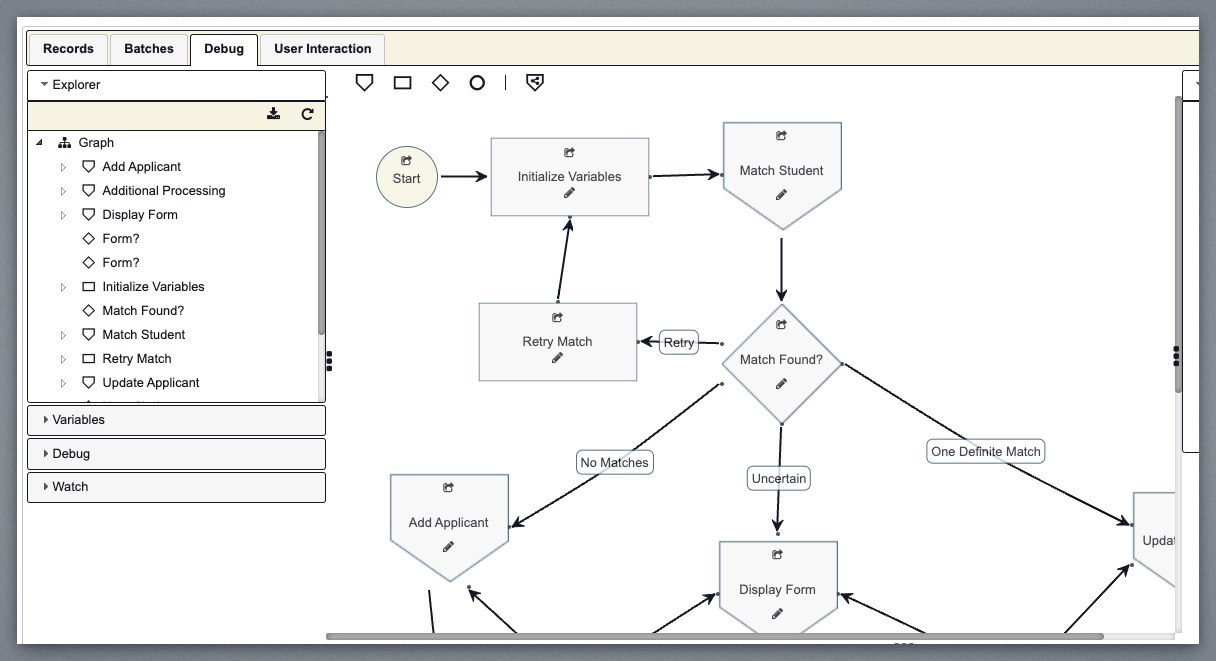
You can go into each node in the graph. For example, let’s go down to the Additional Processing node and click the Edit icon (pencil).
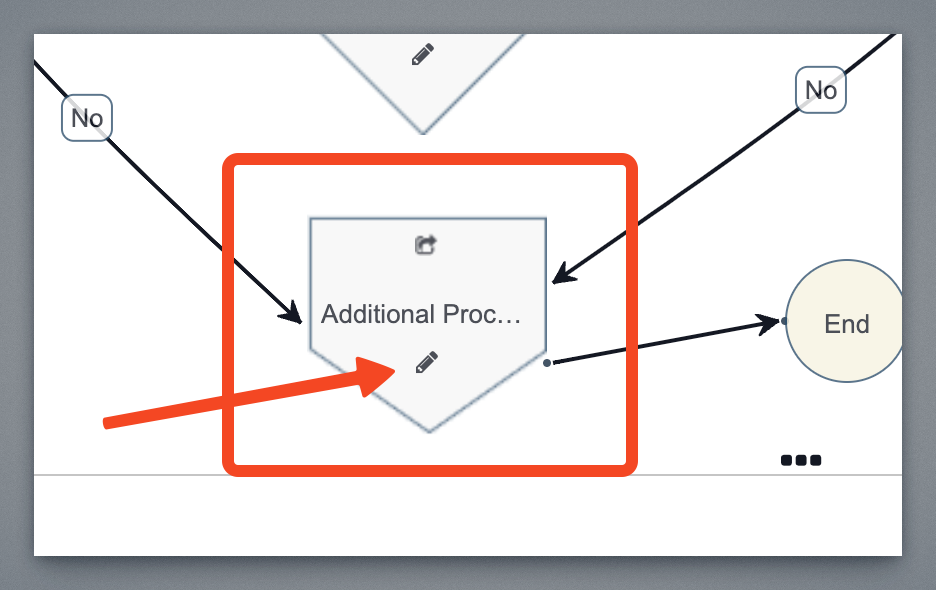
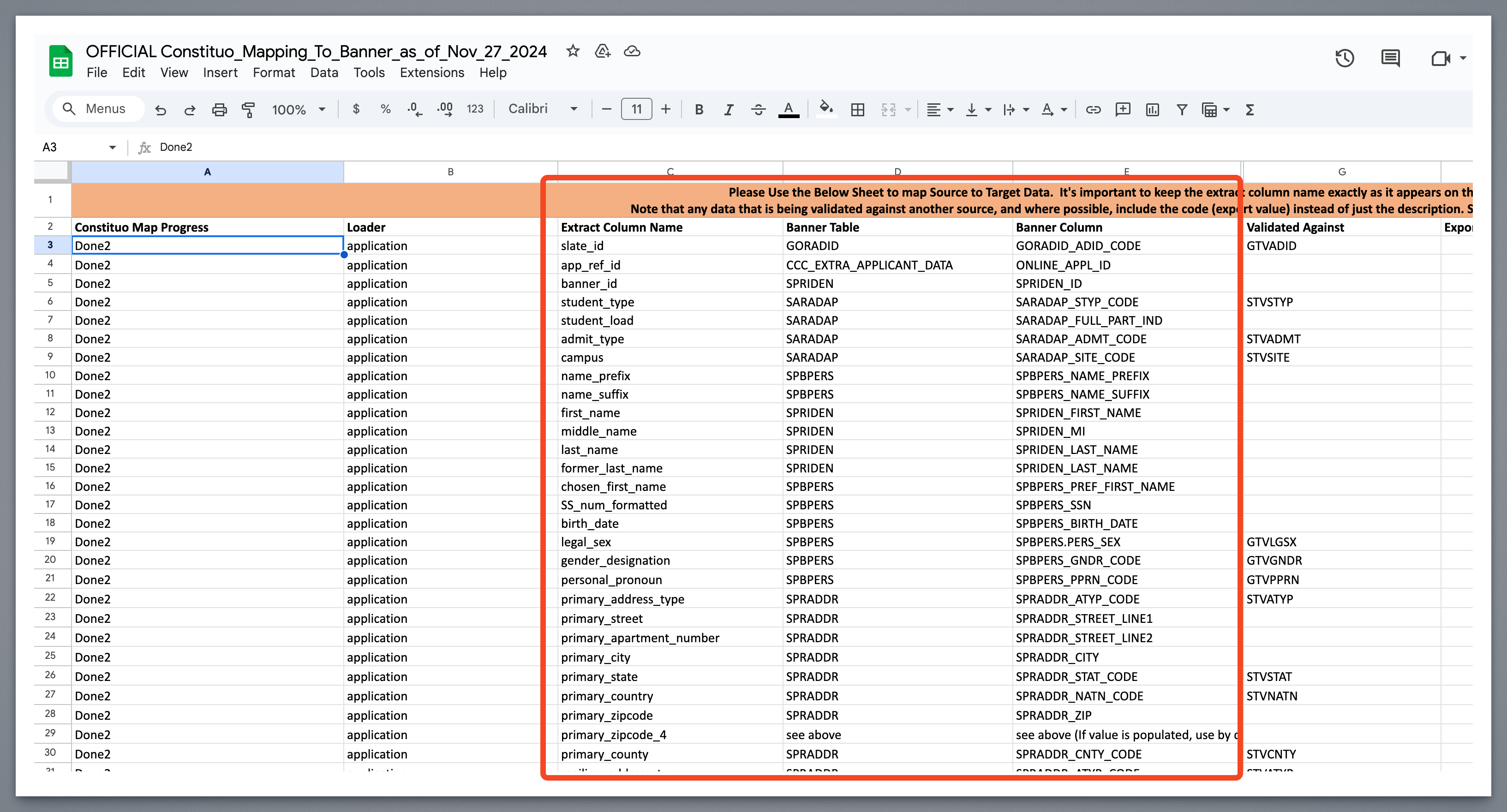
This will display the workflow as it relates to all the tables we’re processing as a part of the Application Loader. The Application Processing workflow is going to correspond to our mapping document. If we look at our mapping document, we can see the Banner tables to which the workflow nodes correspond.
Banner Mapping Document:
Constituo Graph:
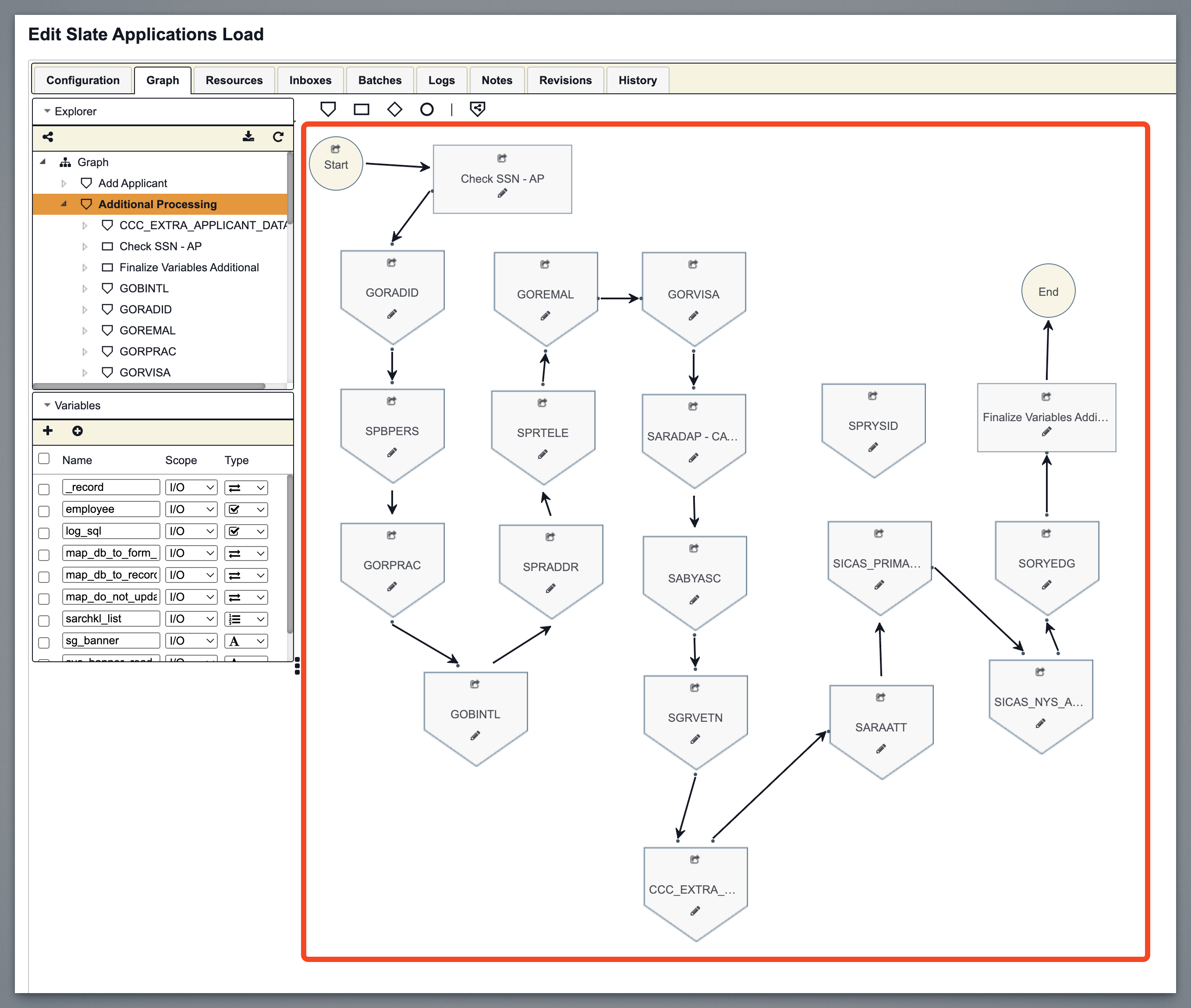
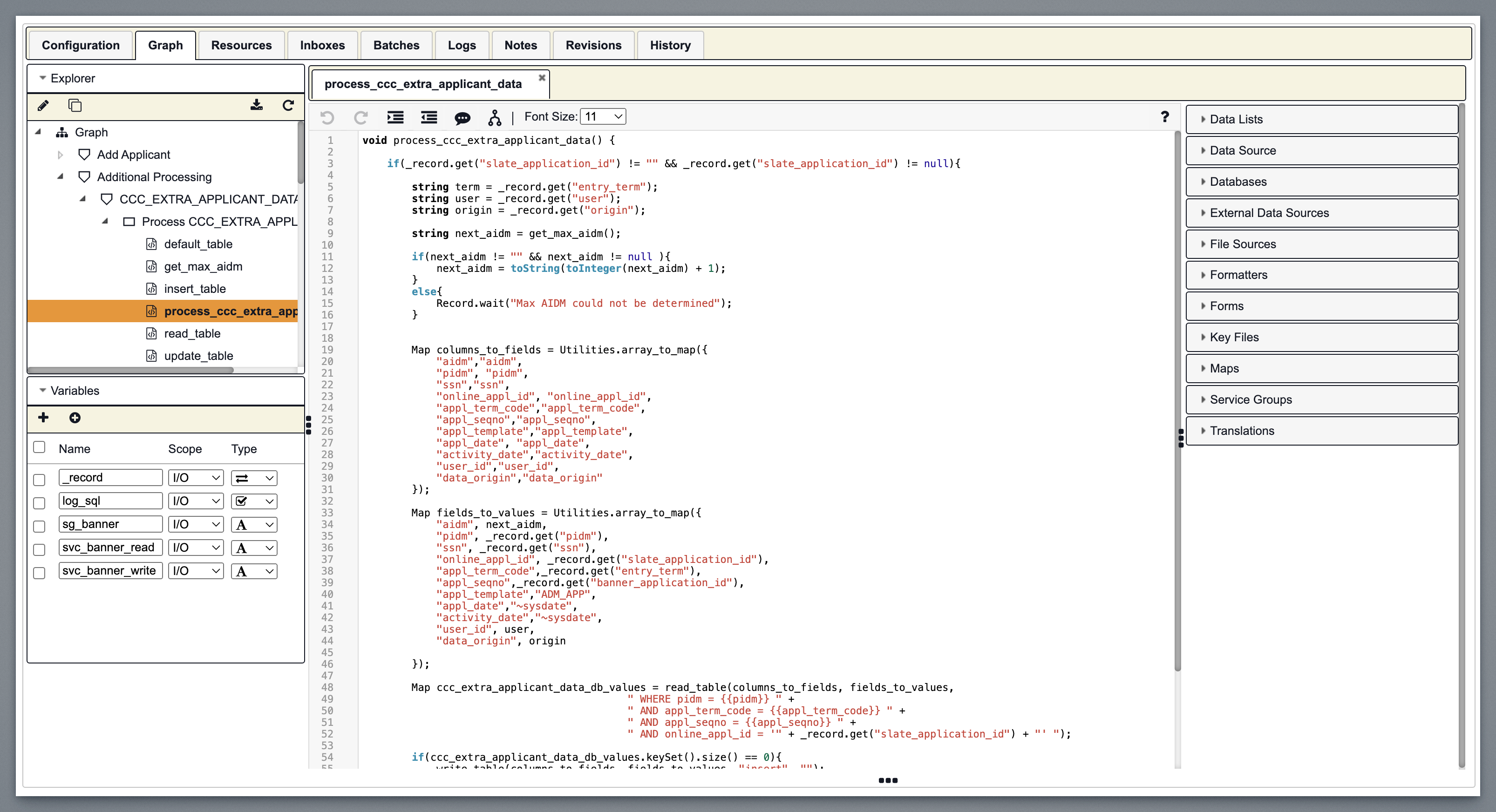
Behind each of these nodes, Constituo has built the code blocks that we can get into. However, if something breaks or we need changes, we should reach out to Davon, but this is where the magic happens for the most part.
CCC_EXTRA_APPLICANT_DATA Example:
Matching Students
The Match Student node is where we will do all of our student record matching. Click the Edit (pencil) icon to go into this workflow.
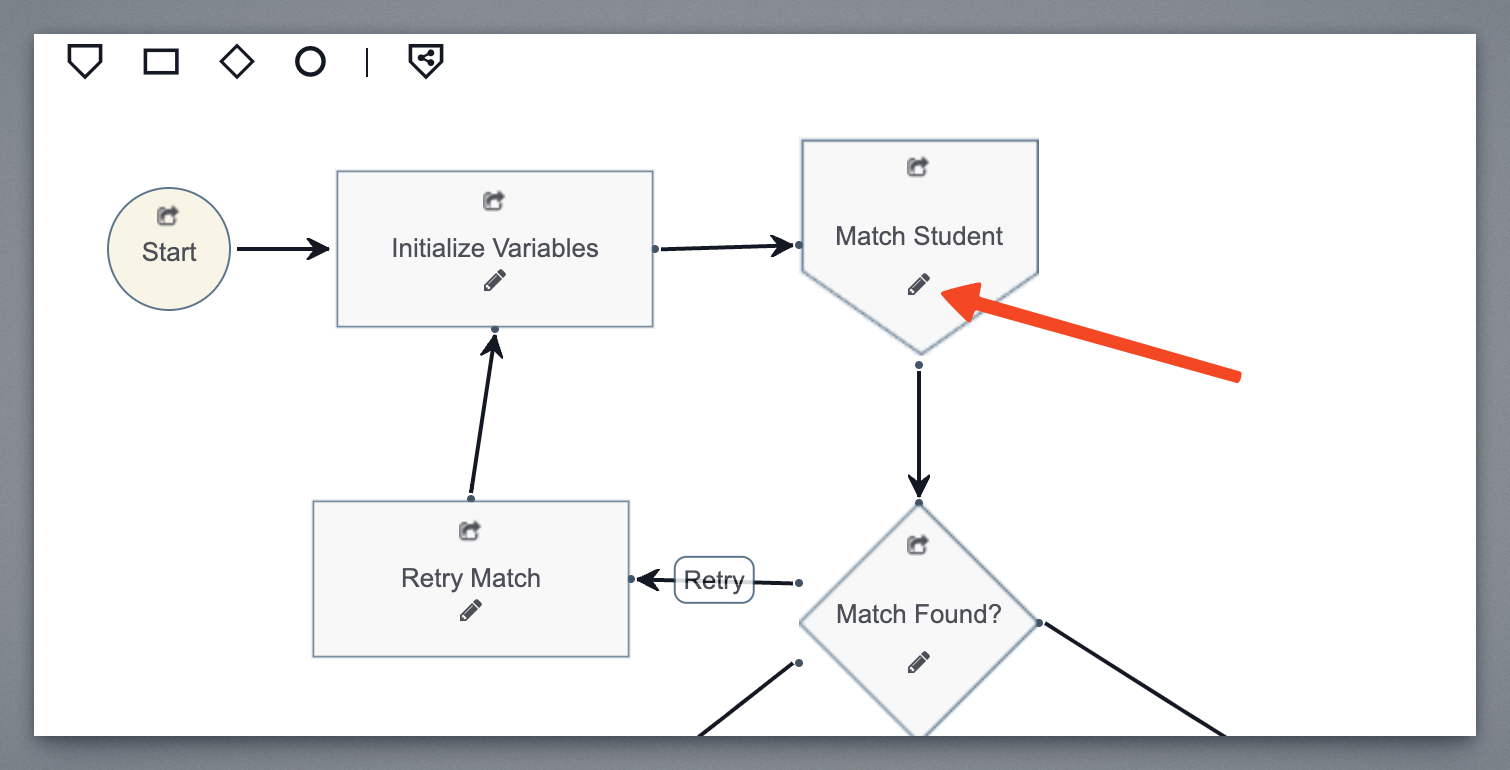
The Match Student node has two different types of matches. We have what we refer to as definite matches and what we refer to as fuzzy matches. Anything that is a definite match will not prompt the user for remediation, but a fuzzy match will prompt the user to open and use the remediation form.
We can match on PIDM, Banner ID, Slate Ref ID, SSN, etc. We go into any of these code blocks to see how these match, and you will see the different SQL Select statements from those various tables, passing in information from the Slate extract.
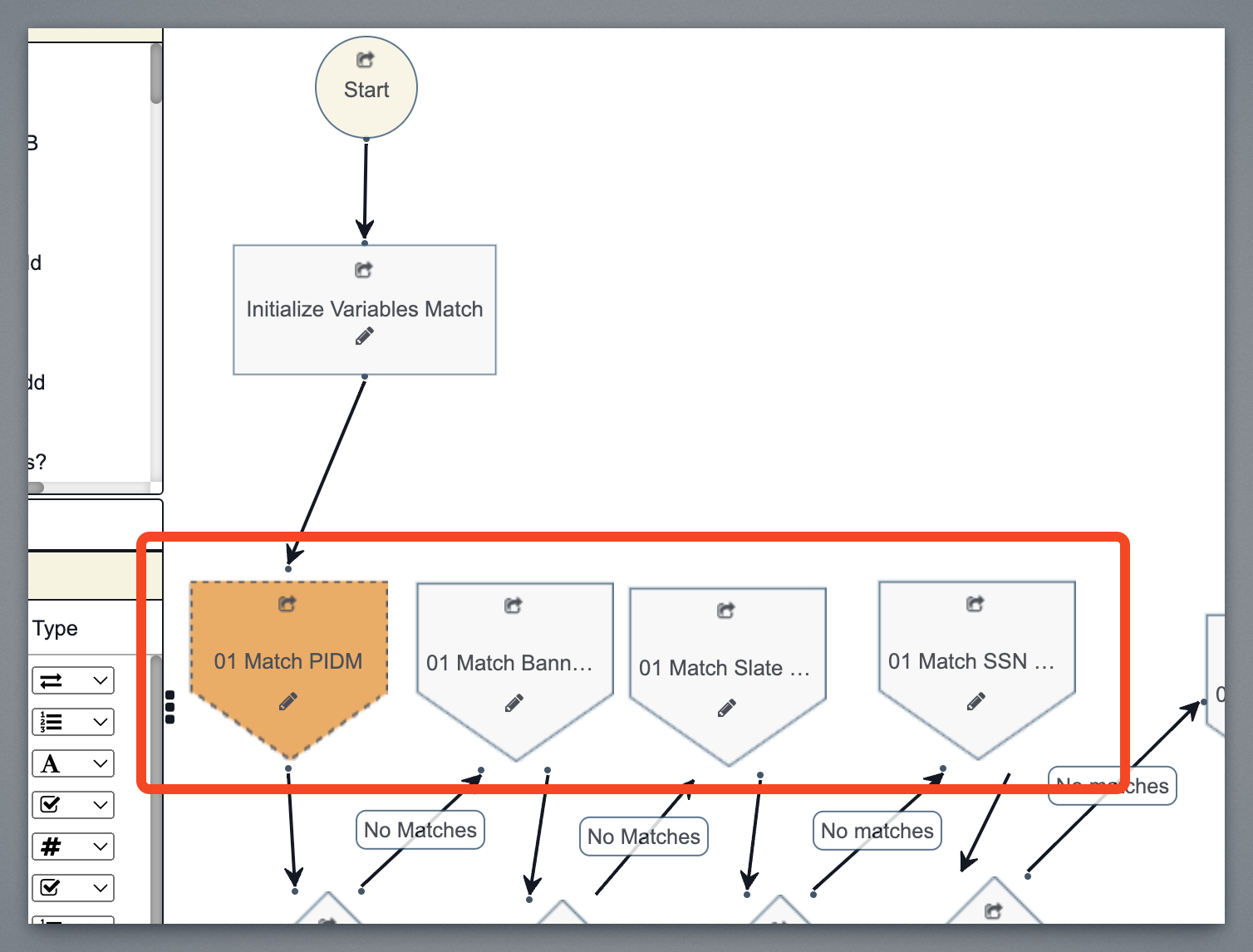
All of these are level-one matches signified by the "01" in the node name. For example, we have a node called "01 Match PIDM".
The second-level matches are the fuzzy matches, and these will have "02" in the node name. For example, we have a node called "02 Match Last5 First2 DOB".
If needed, we can add or remove Matching nodes to adjust the number of potential student matches.
User Remediation Form
When you run a record in the Batch listing, the User Remediation Form will appear. You will see input line items for each record coming in from Slate, and a list of potential matches for each.
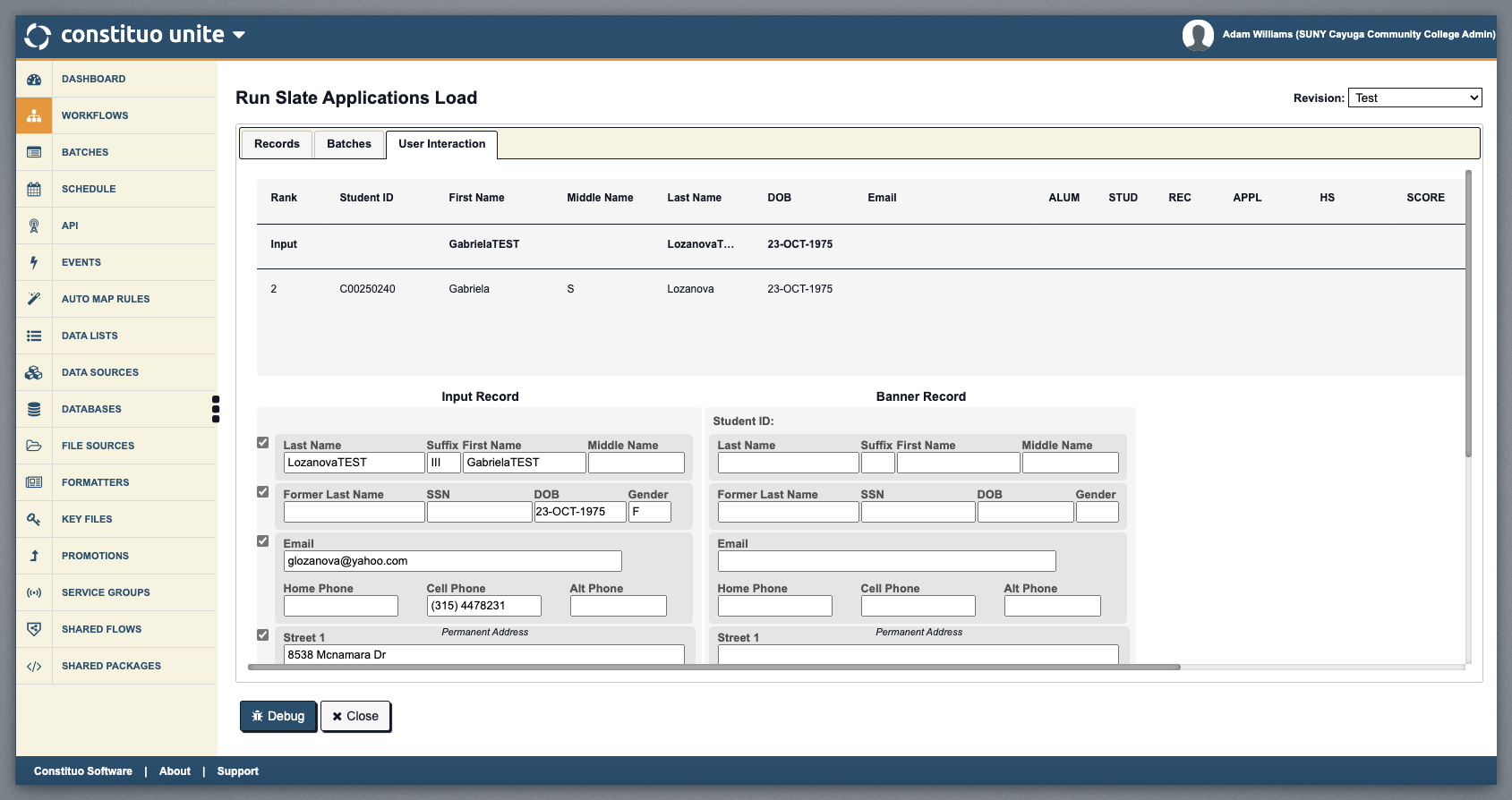
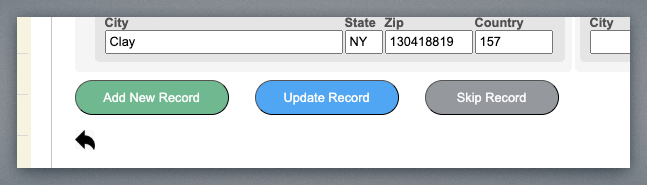
When comparing the Input Record from Slate with the existing Banner Record, a decision needs to be made for each record. The options are to either Add New Record, Update Record, or Skip Record. If a record is skipped, it means that someone will need to review it and make a decision at a later date.
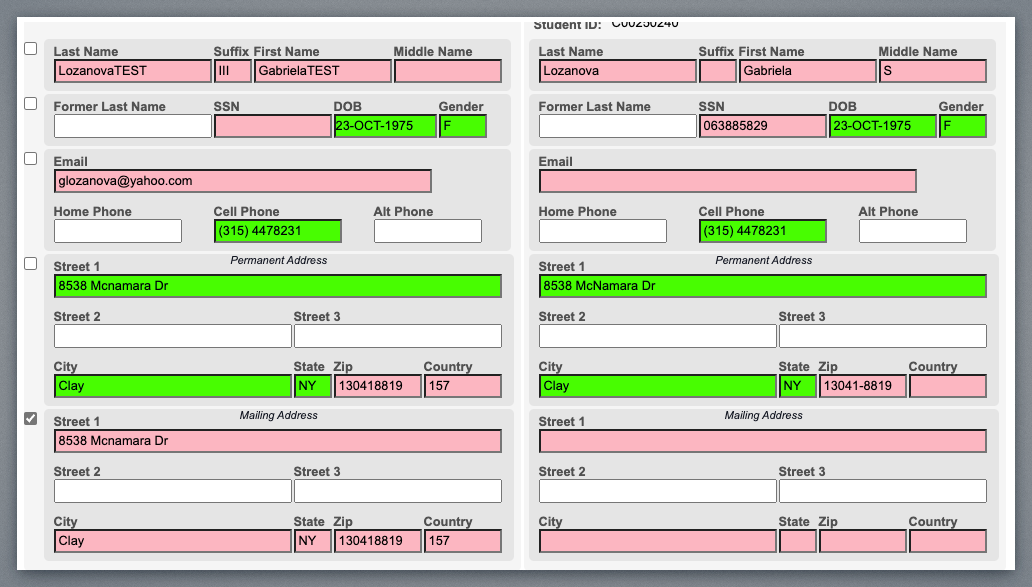
Clicking on a matched record in the list will display which incoming Slate fields are similar to or different from the Banner records. Matched fields will be highlighted in GREEN, while similar fields will be highlighted in RED.
Skip Repeat Records
The Skip Repeat Records feature is designed to streamline the processing of aggregate batches from Slate. This applies to cases where you are sending batches that include all records, rather than just the newer, updated ones.
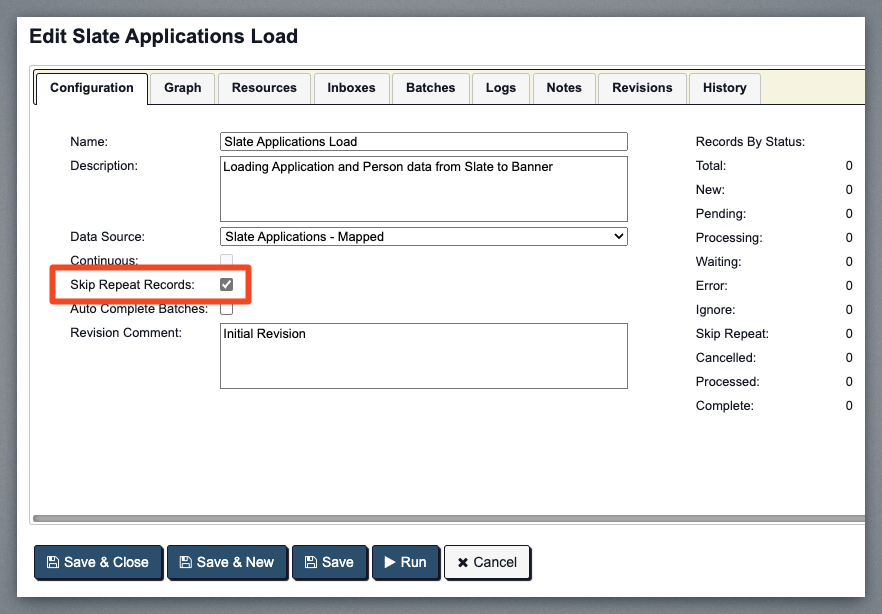
For example, if you are sending aggregate batches or transmitting all records each time, the Skip Repeat Records mechanism ensures that duplicate records aren’t processed. Essentially, this feature compares all the data in your current import to the data from the previous batch. If all the data is identical, the current batch record will be skipped.
Banner to Slate (Finalized Variables Additional Step)
As part of the Slate to Banner transfer, the Finalize Variables Additional step in our Graph workflow process, Banner will now communicate back to Slate each time the batch is completed.
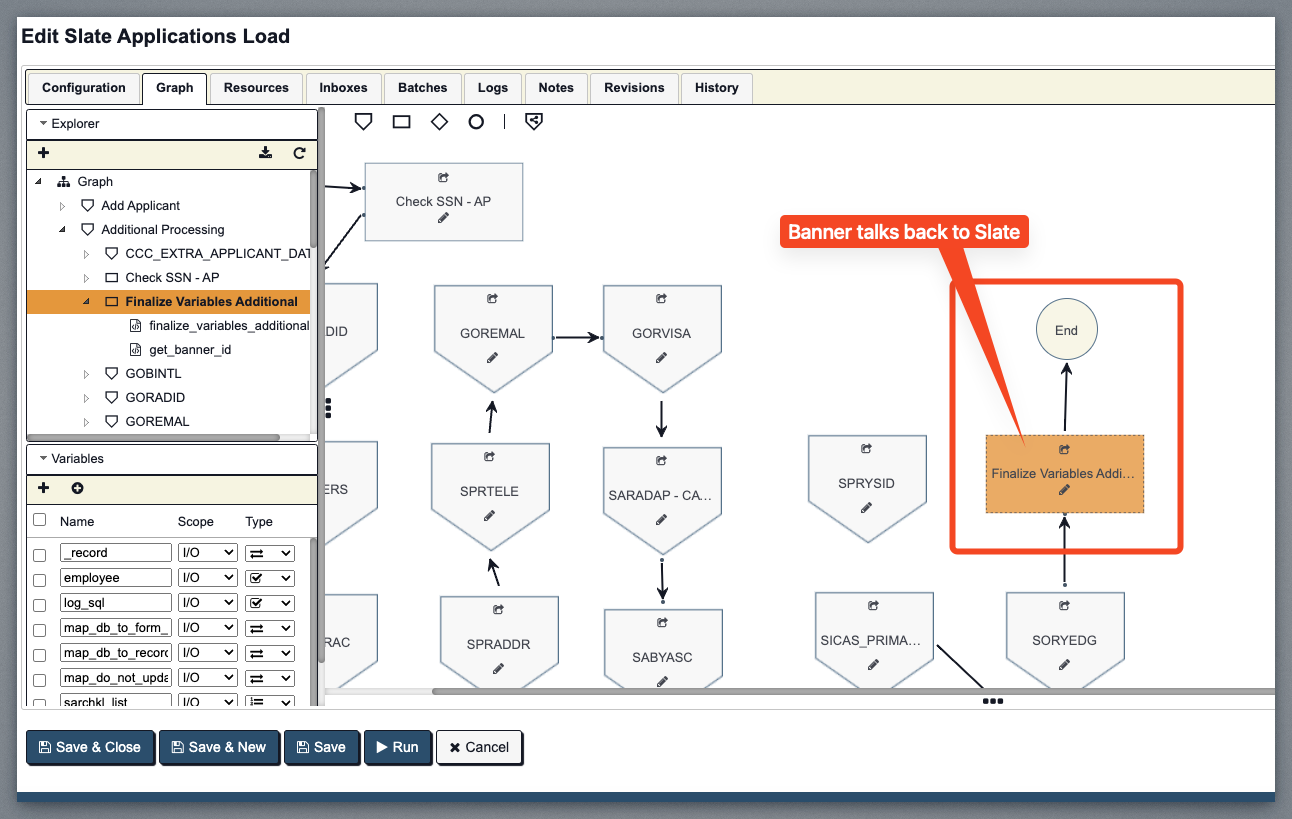
During the Finalize Variables step, the process will record the Application ID, Banner ID, and timestamp. This information will then be added to our resources, specifically in a data list that links Banner IDs to Slate applications.
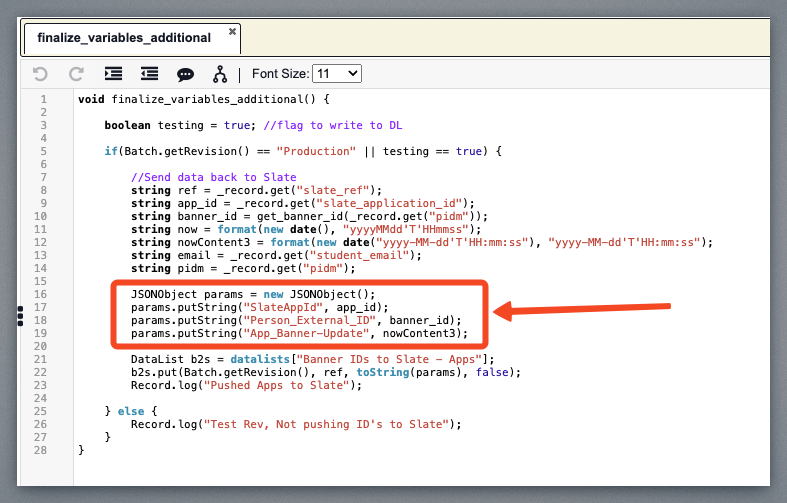
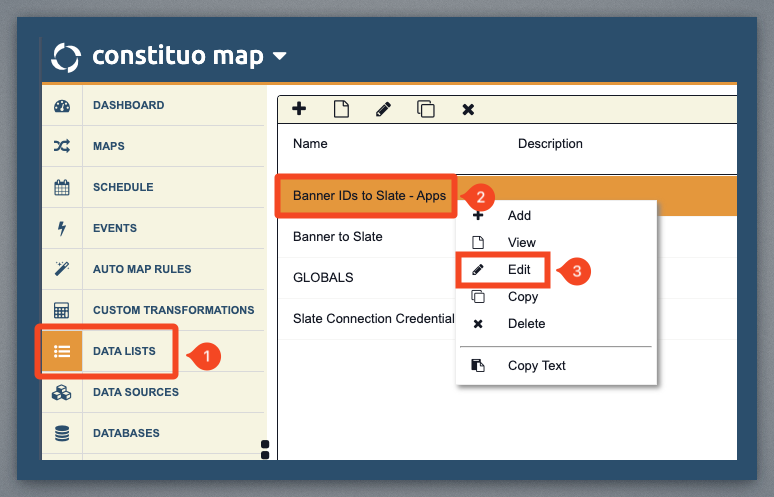
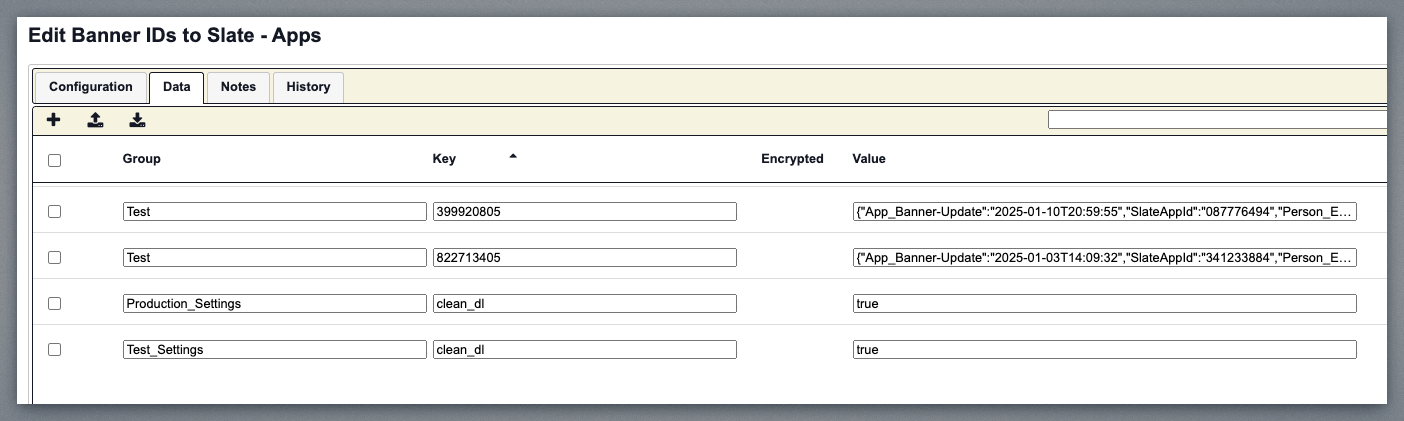
It will add it to a Data List as part of the Banner IDs to Slate - Apps list found under Resources.
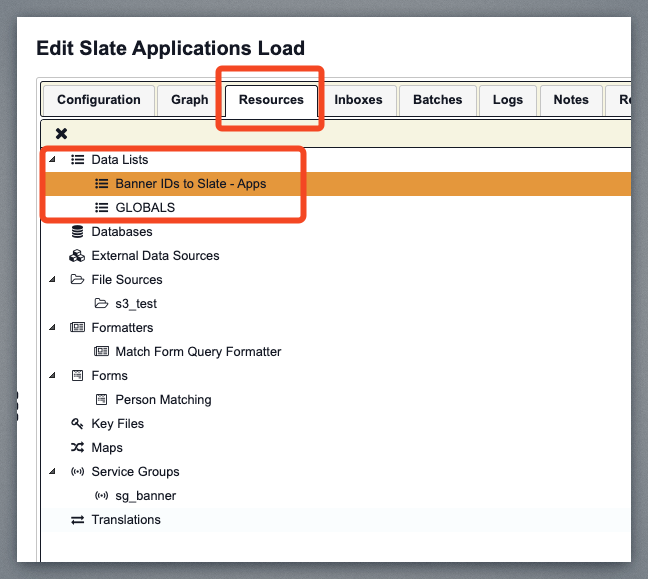
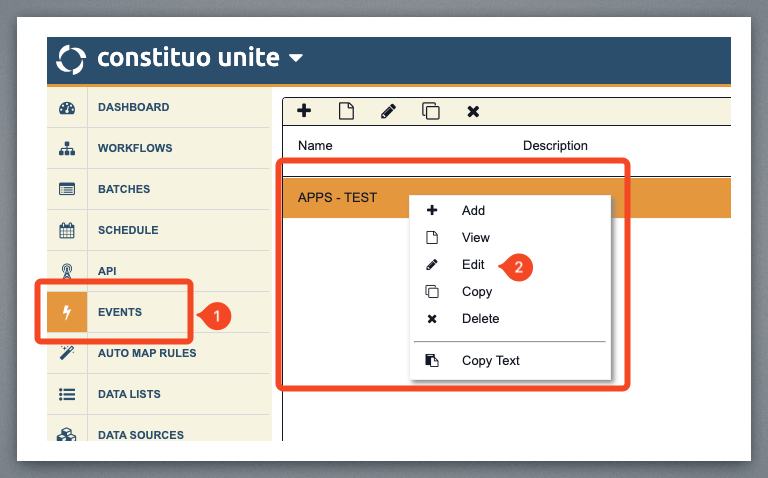
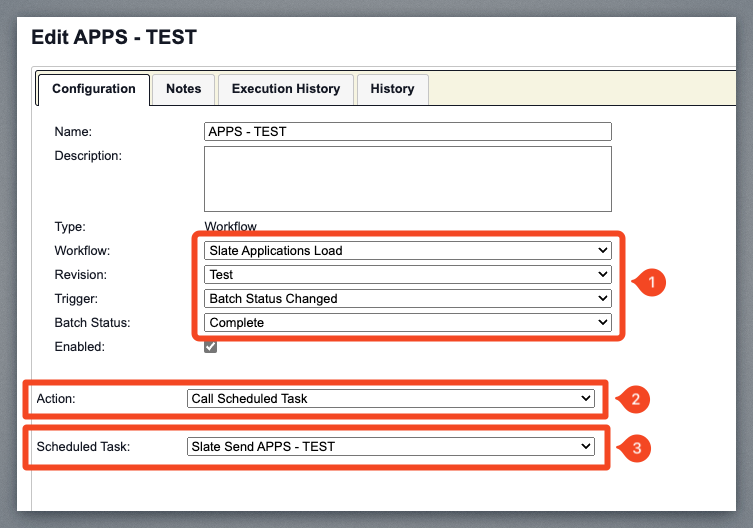
The JSON object will be added to the Data List. We have an Event that functions as a trigger, which means it will execute a certain action.
Looking at our current configuration, it specifies that when the slate application batch is completed, it will call this scheduled task.
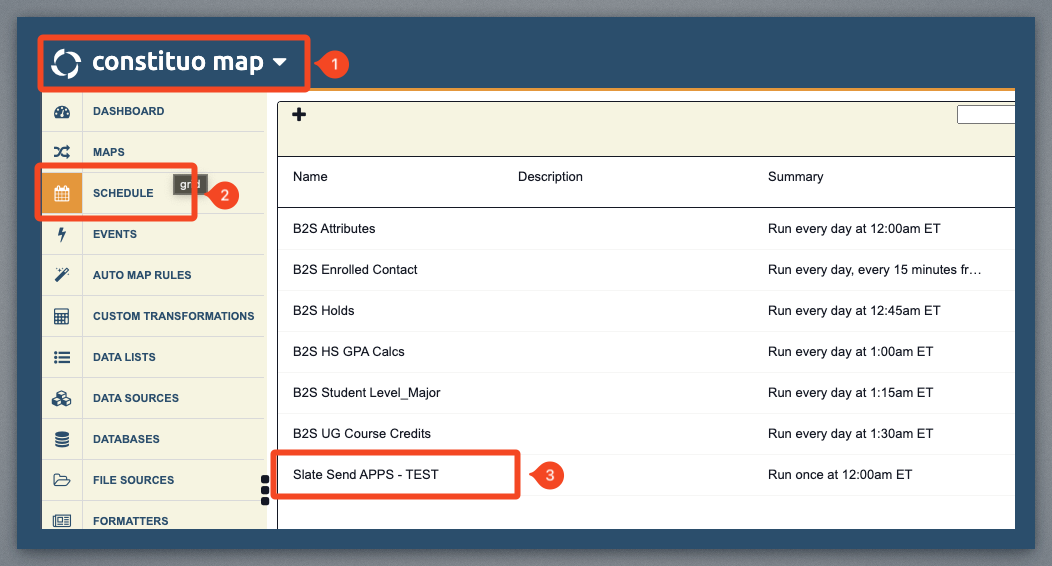
If we refer back to the Constituo Map, we can examine the details of the scheduled task. Under the Scheduled Tasks menu, you will find the action that is being called. In this example, it is labeled “Slate Send APPS – TEST.”
Right-click the scheduled task and choose EDIT.
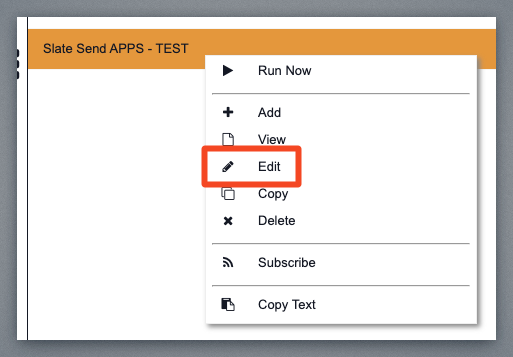
You will see this scheduled task is going to call the Banner to Slate App IDs Map, and it’s going to send it to the Output File Source location that we defined. After testing is done, it will be going to our Slate Outgoing destination, which will be our SFTP site.
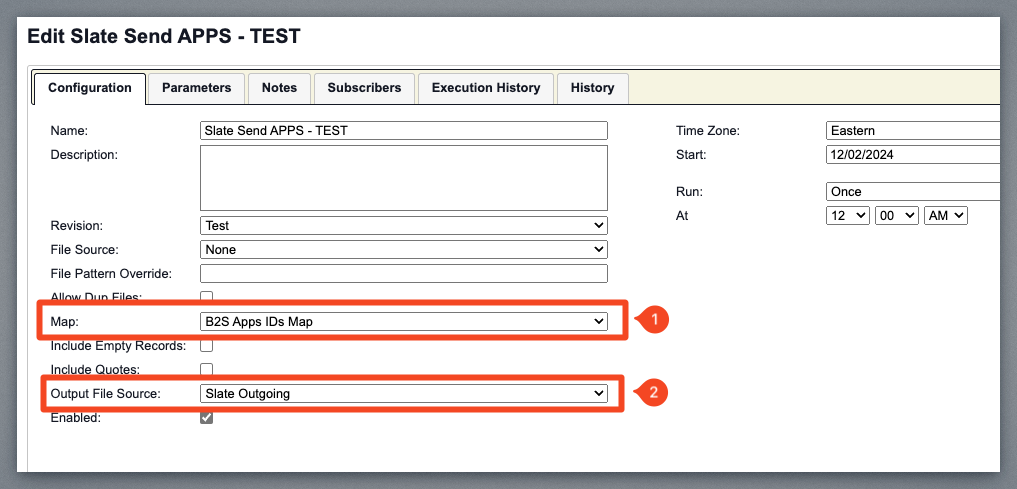
If you review the Banner to Slate App IDs Map found under the Maps menu, you can see its functionality by right-clicking and selecting EDIT.
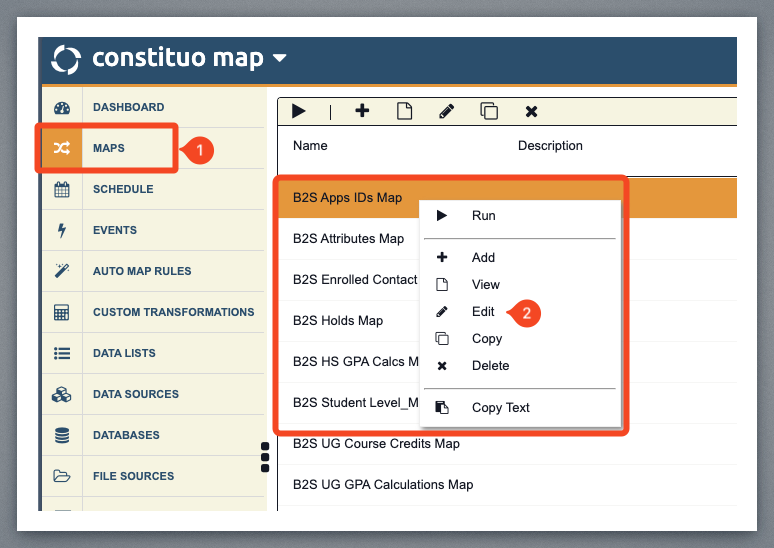
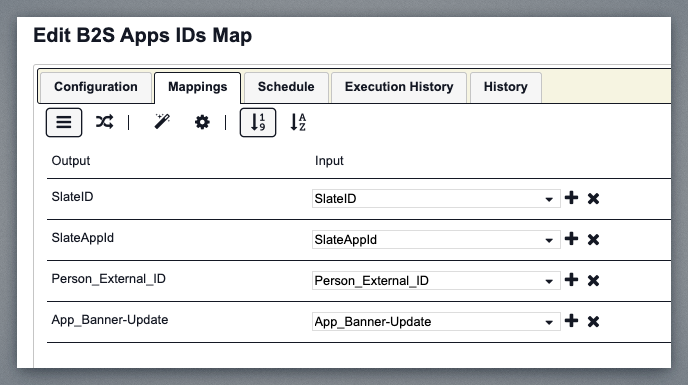
If you examine the mapping, you will find the mapping of the SlateID, SlateAppId, Person_External_ID, and the timestamp.
If we return to the Data List where it is storing information (in this example, Banner IDs to Slate), we can review the Data tab to see the JSON object that is generated and stored for that specific individual.
Manually Creating a Batch from the Schedule Task
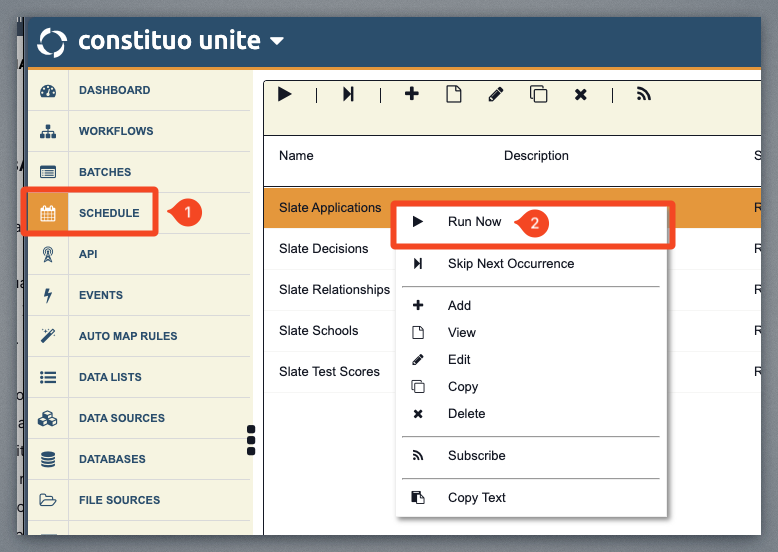
You can manually create batches under Constituo Unite using the Schedule menu. In the Schedule task list, you can right-click and click Run Now on a selected task.
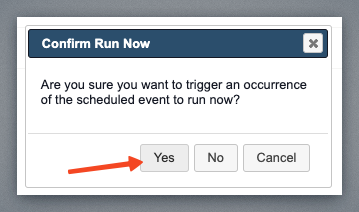
It will ask if you are sure you want to Confirm Run Now, and you should click the YES button.
At that point, it will create the batch and automatically run it as well. If we return to the Slate applications and access our batches, we can see that processing has begun.
In this example, we will revisit the Slate Applications Load workflow in Workflows. Right-click on the workflow and select EDIT.
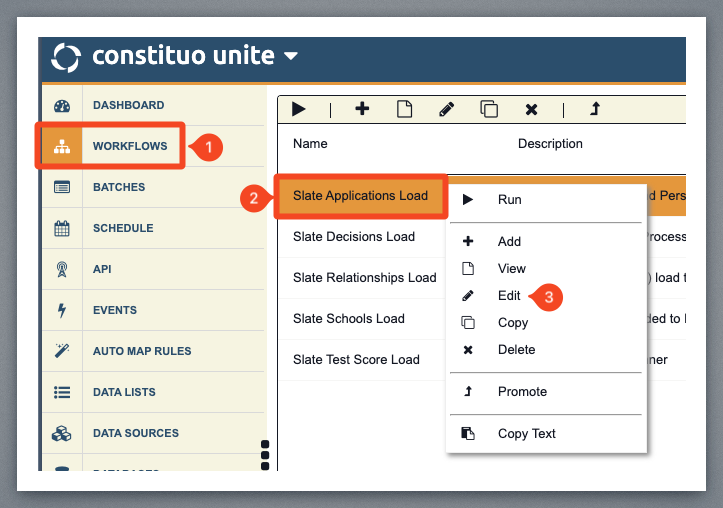
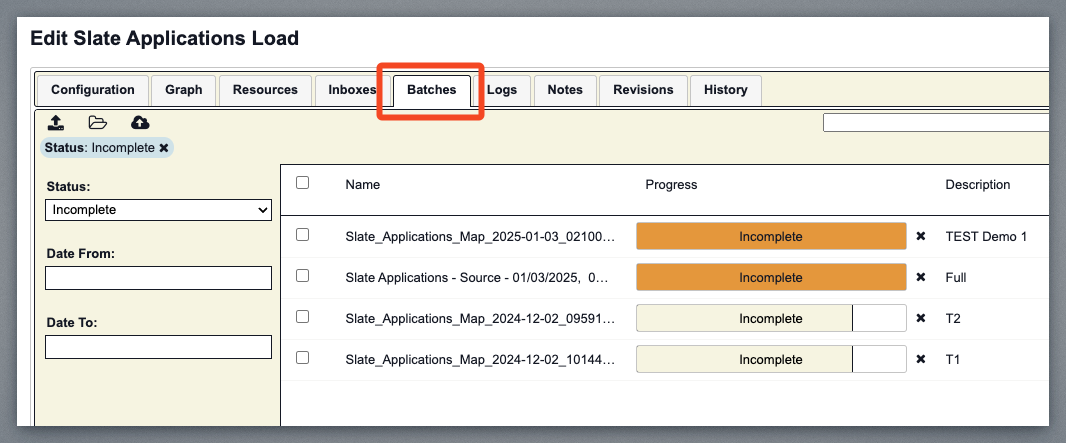
Click the Batches tab.
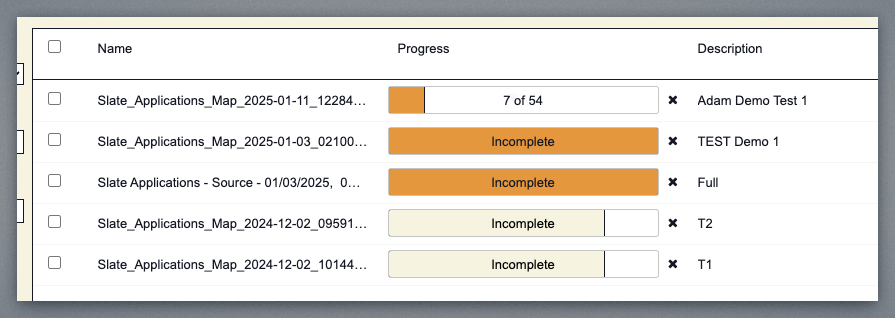
In this example, the Batch status changes to "Incomplete" and is displayed in an orange color, indicating that there is an error in one of the records.
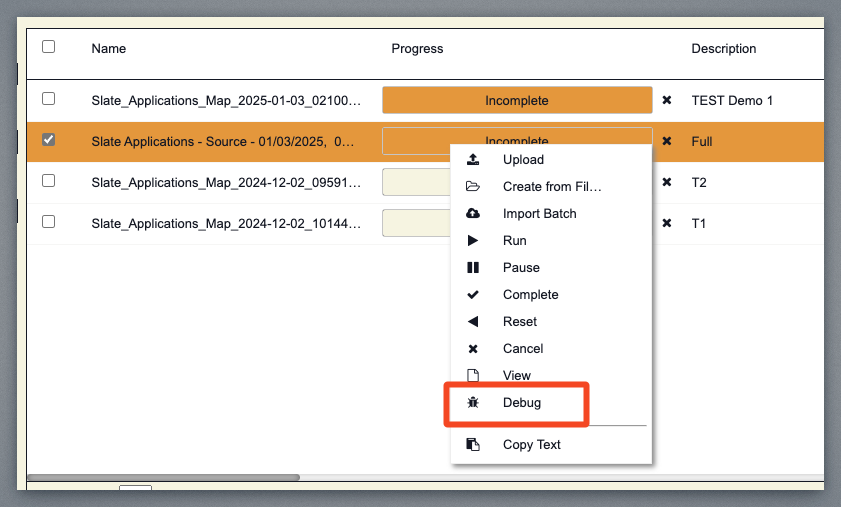
Go into Debug mode by right-clicking the Batch status.
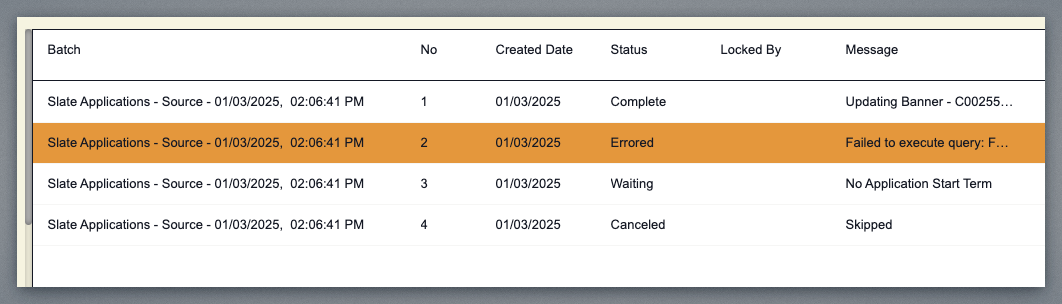
You can now review the completed workflow and check for any errors related to the potential matches. The different error messages and statuses of each individual record are displayed, indicating which records require user remediation or intervention.
If you right-click on any record and select EDIT, you can see all the data contained in that record. You can change the record here as needed in order to import the record.
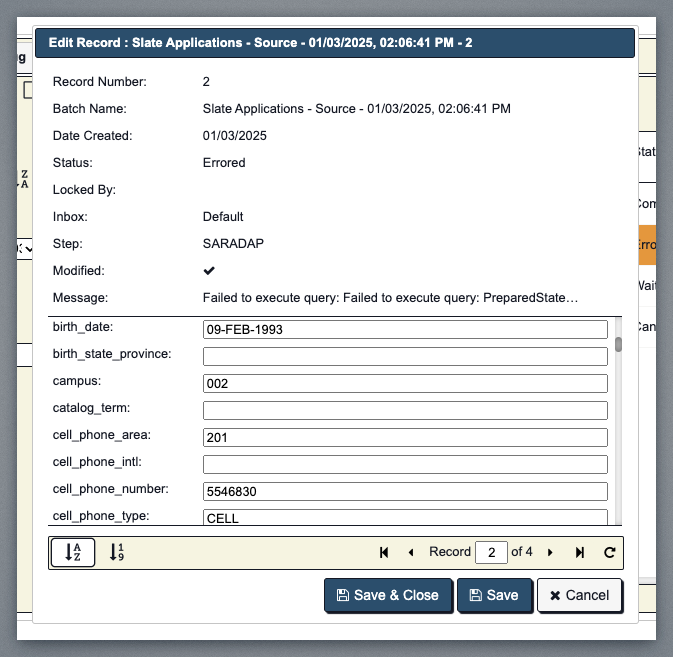
You would want to fix and save the data, reset it, and then rerun the record.
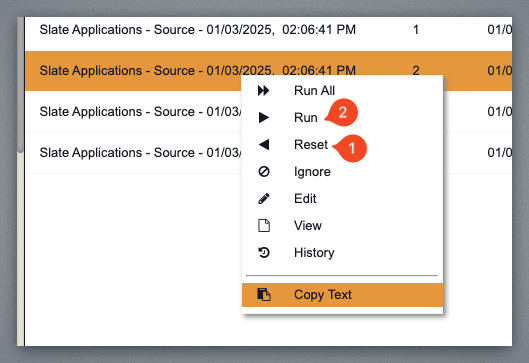
The record will rerun again, and if the issues are cleared up, the status will change to Complete.
Manually Creating a Batch from a Map File
Another way to process records is to manually create a batch at the Constituo Map level. For instance, to create an Application batch, we go to Constituo Map and choose Map from the menu. Right-click on Slate Applications Map, and select Run.
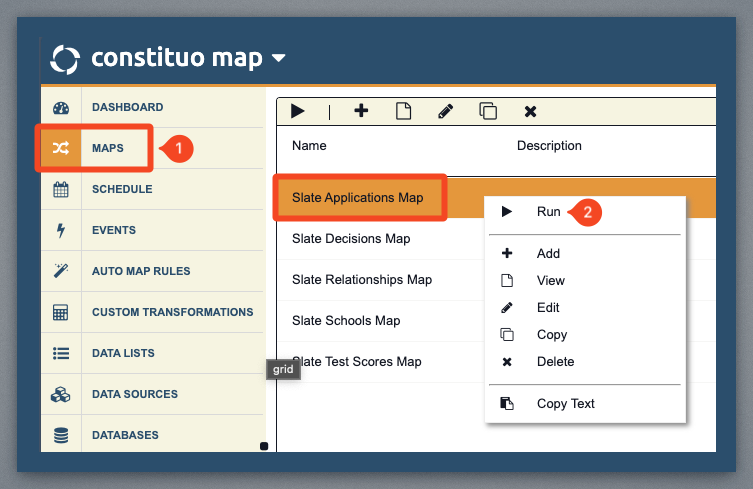
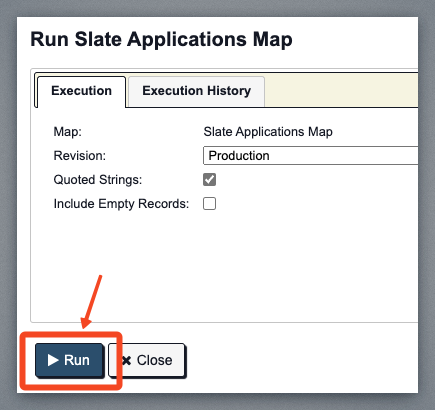
Click the Run button to start.
Running this should generate a CSV batch file that you will download your local machine.
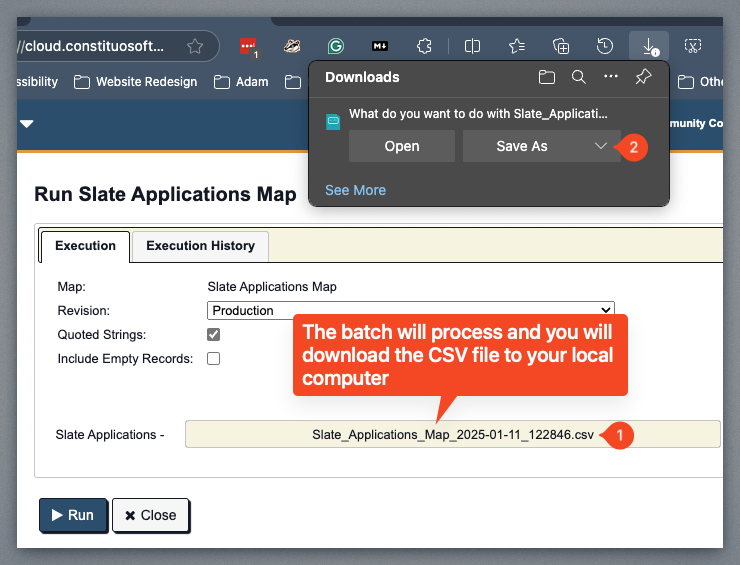
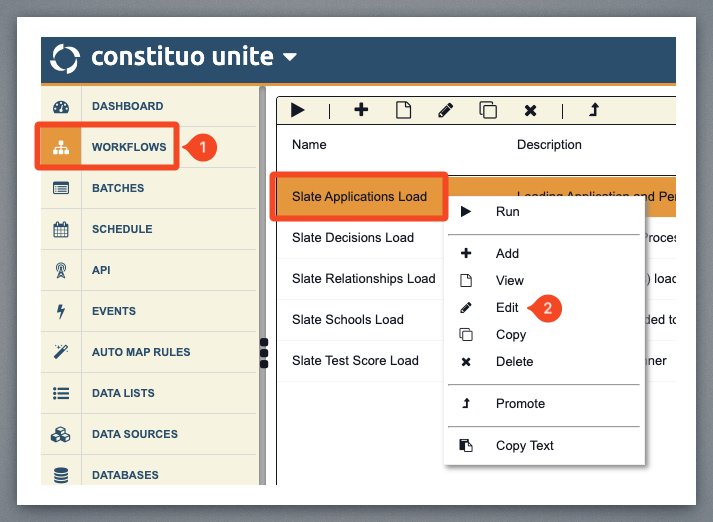
After downloading the CSV file, go to Constituo Unite, go to the Workflow menu, right-click on the Workflow you want to run, and select Edit.
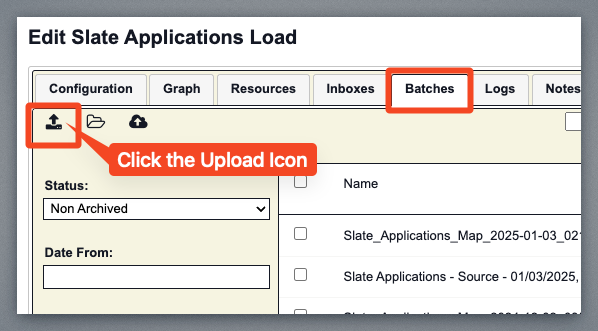
Click the Batch mode tab. Then, click the upload icon in the upper-left corner to upload the CSV batch file from your local computer.
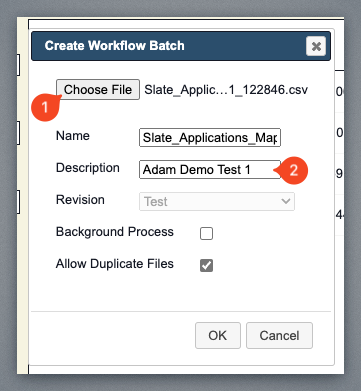
Choose the CSV file you downloaded and provide a description. Make sure that if we are only testing that the Revision menu is set to Test.
After you click OK, the batch file will be manually loaded. At this stage, it will not process automatically since you uploaded it manually. You can either right-click to run the batch at this level, which is referred to as a Batch Level Run, or you can view the individual records and run them one by one.
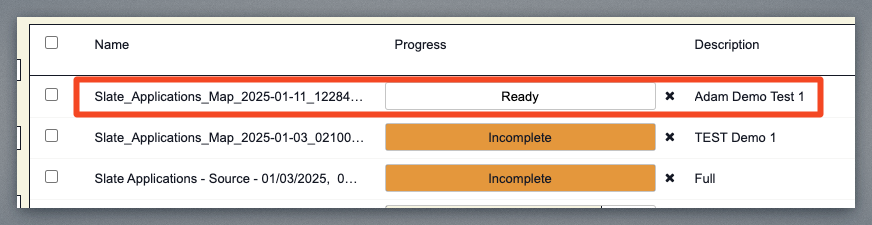
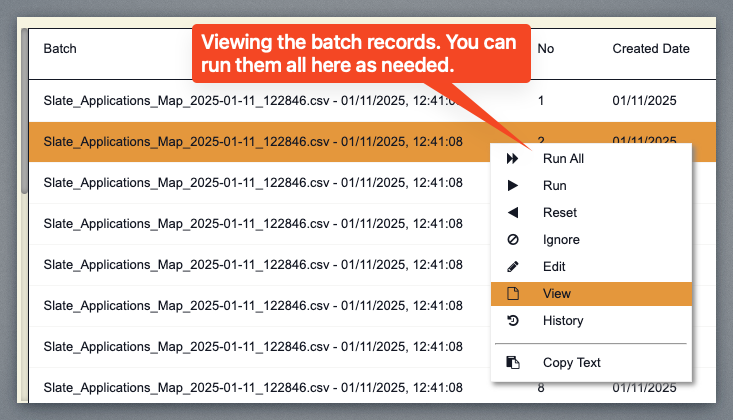
In this example, we will process all the records, and you will see the progress in the status bar.